Expenses
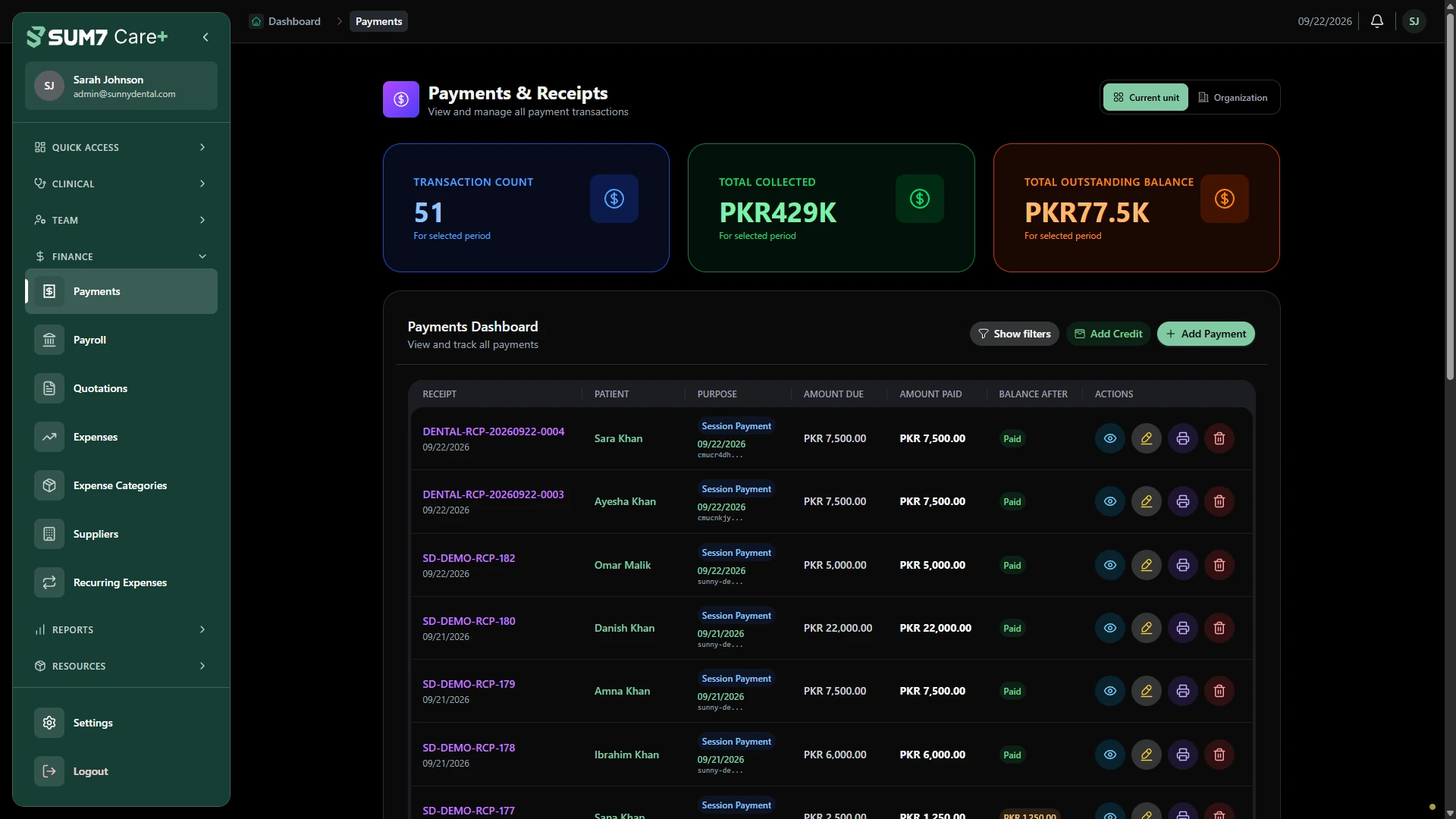
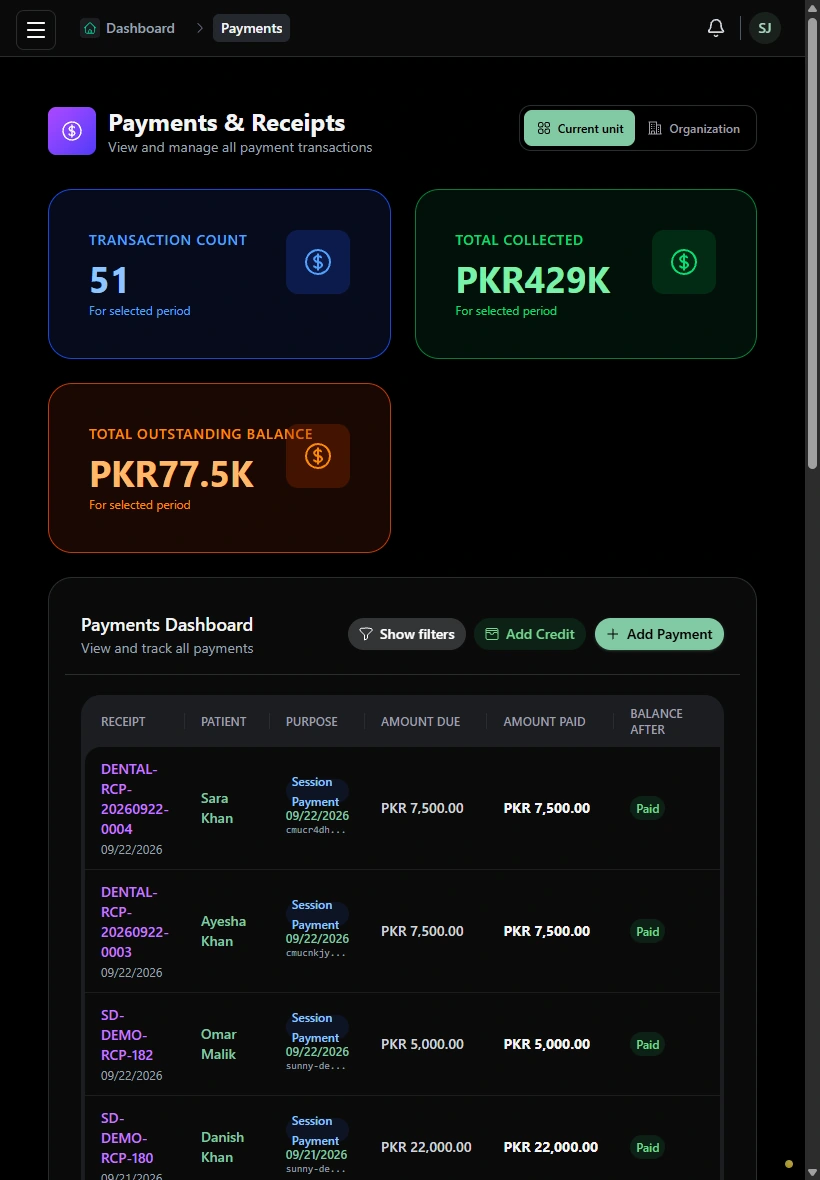
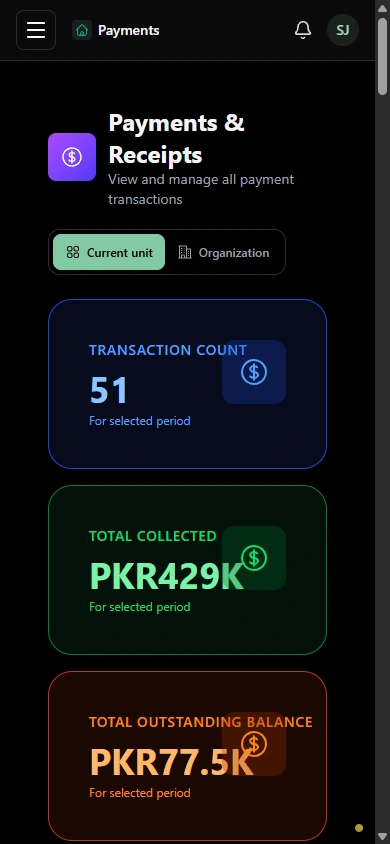
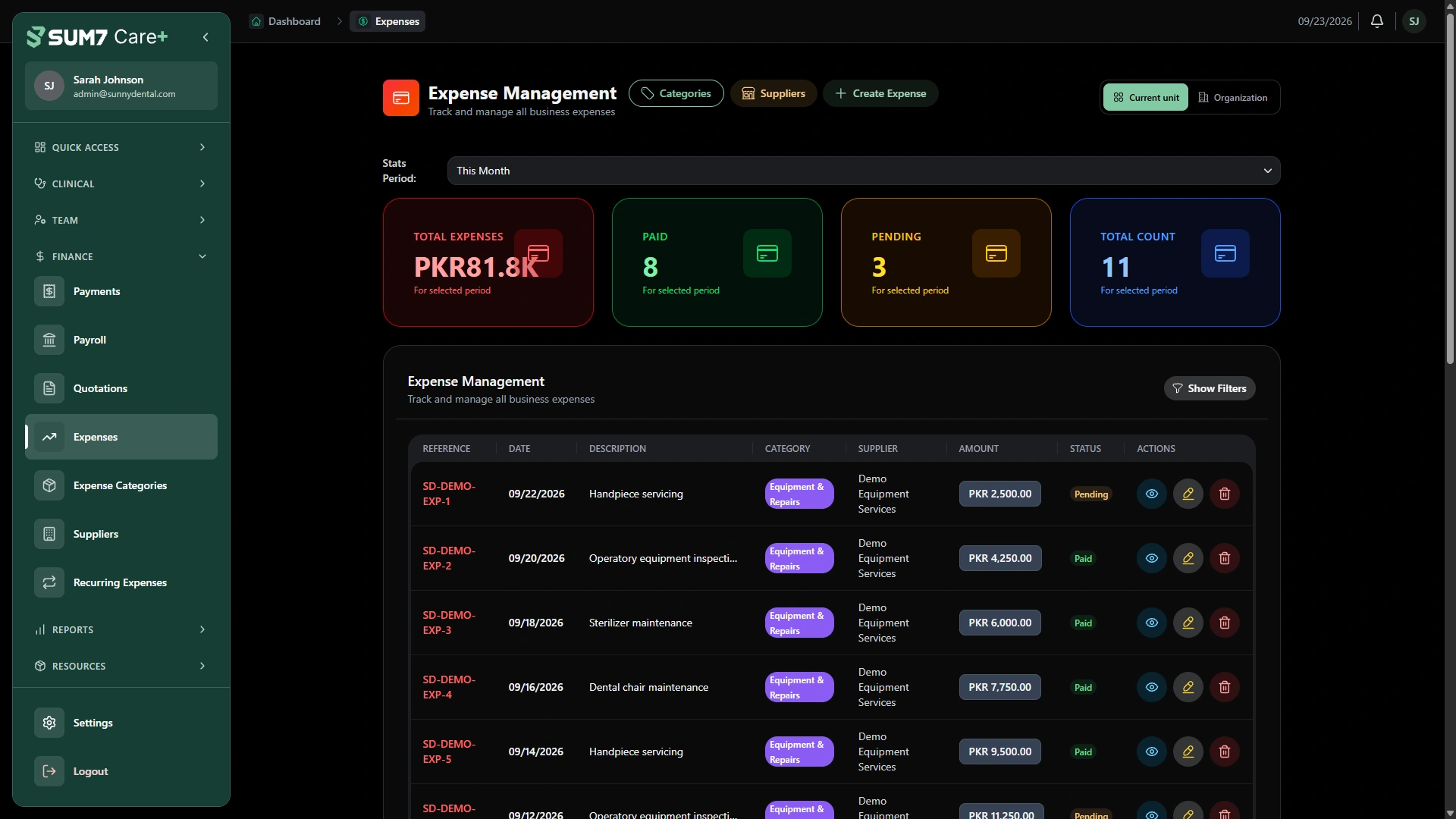
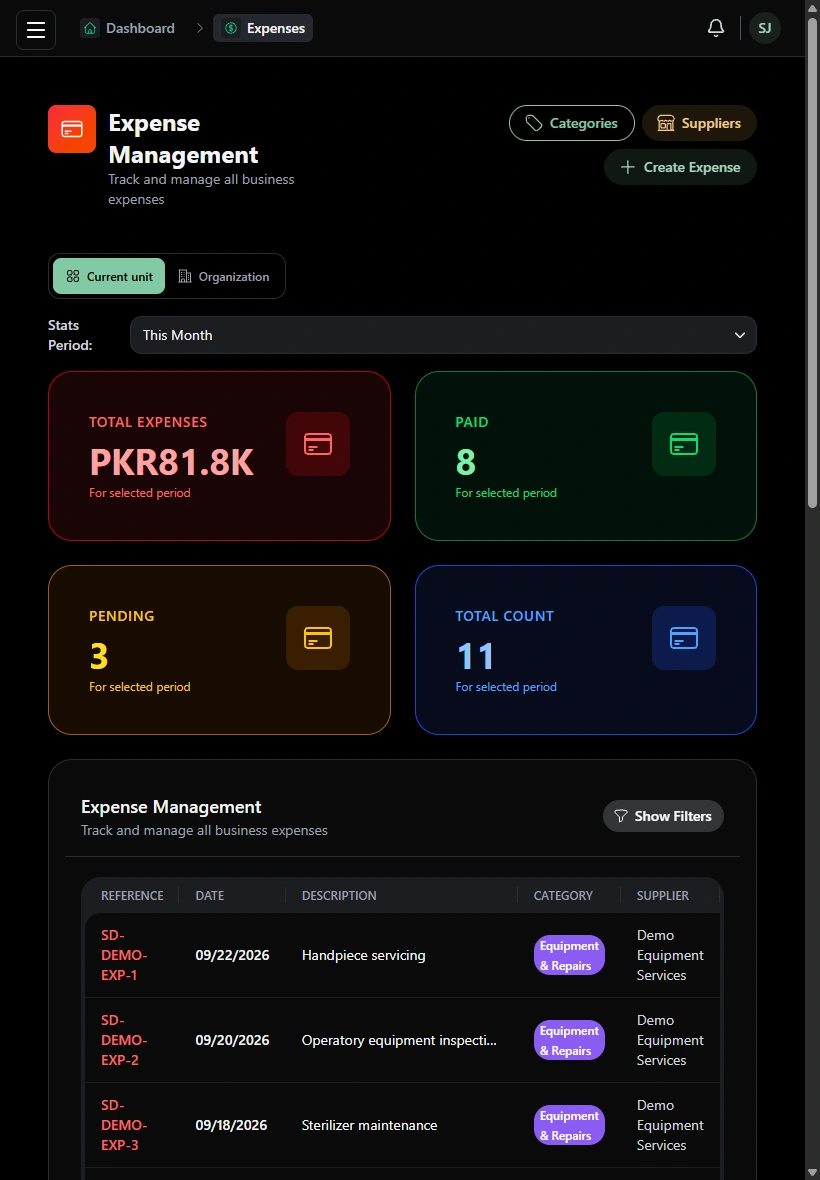
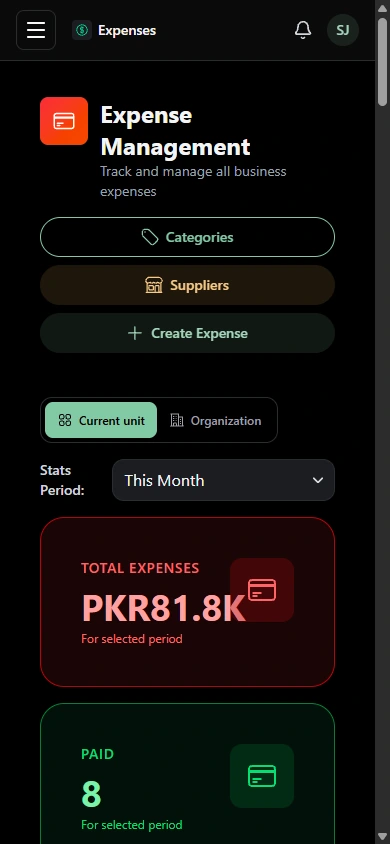
Track practice expenses, suppliers, categories and recurring expense rules alongside your clinical operations.
From the appointment desk to the clinical record, give your dental team a clear place to follow each patient’s care and payments.
Request a personalized demo One business or multiple units. Your choice.Follow the people, records and decisions that keep a dental practice moving. Explore each workflow on desktop, tablet and phone.
Sign in, review practice activity and find your account controls.
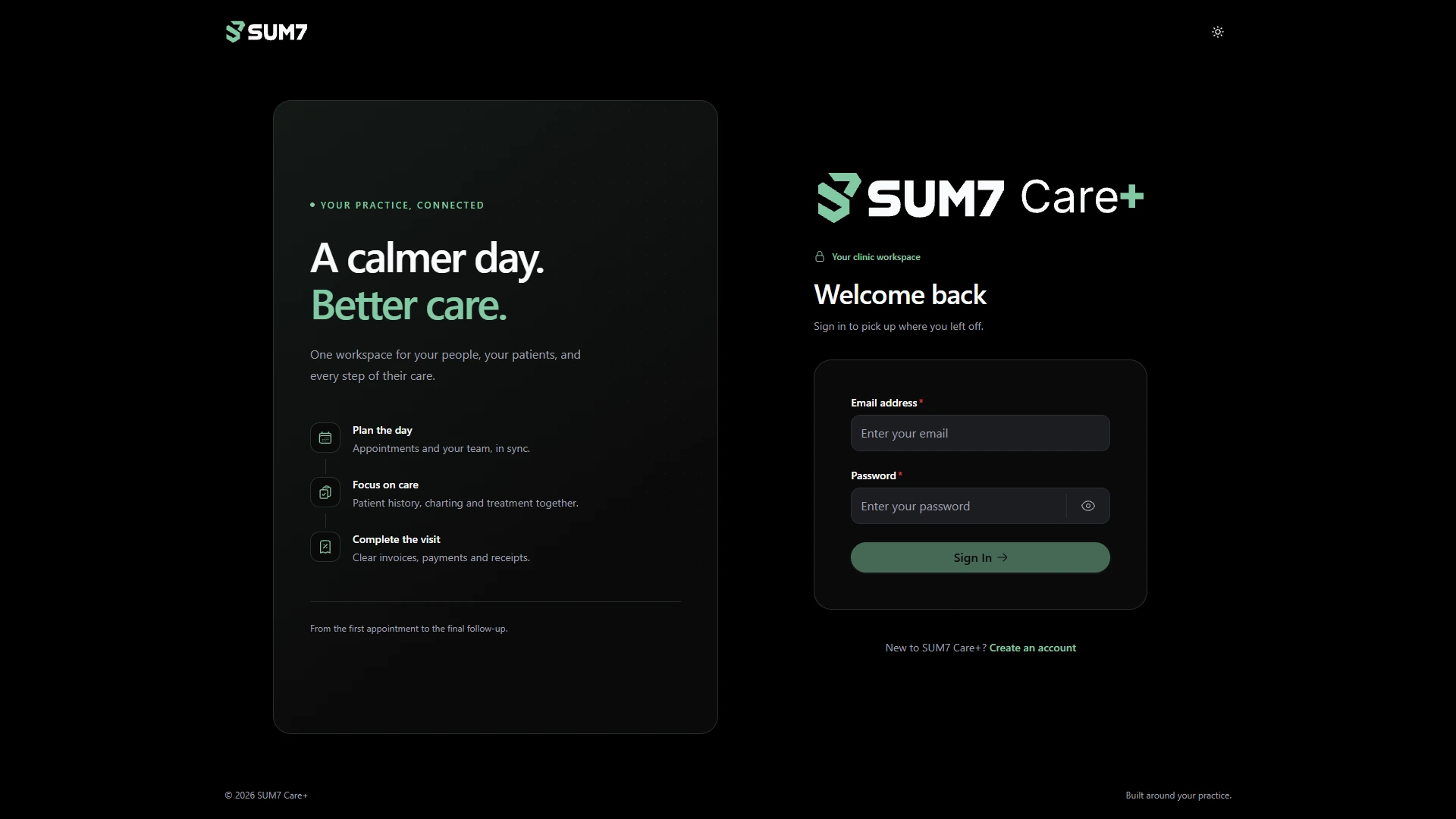
Use your staff account to enter the clinic workspace.
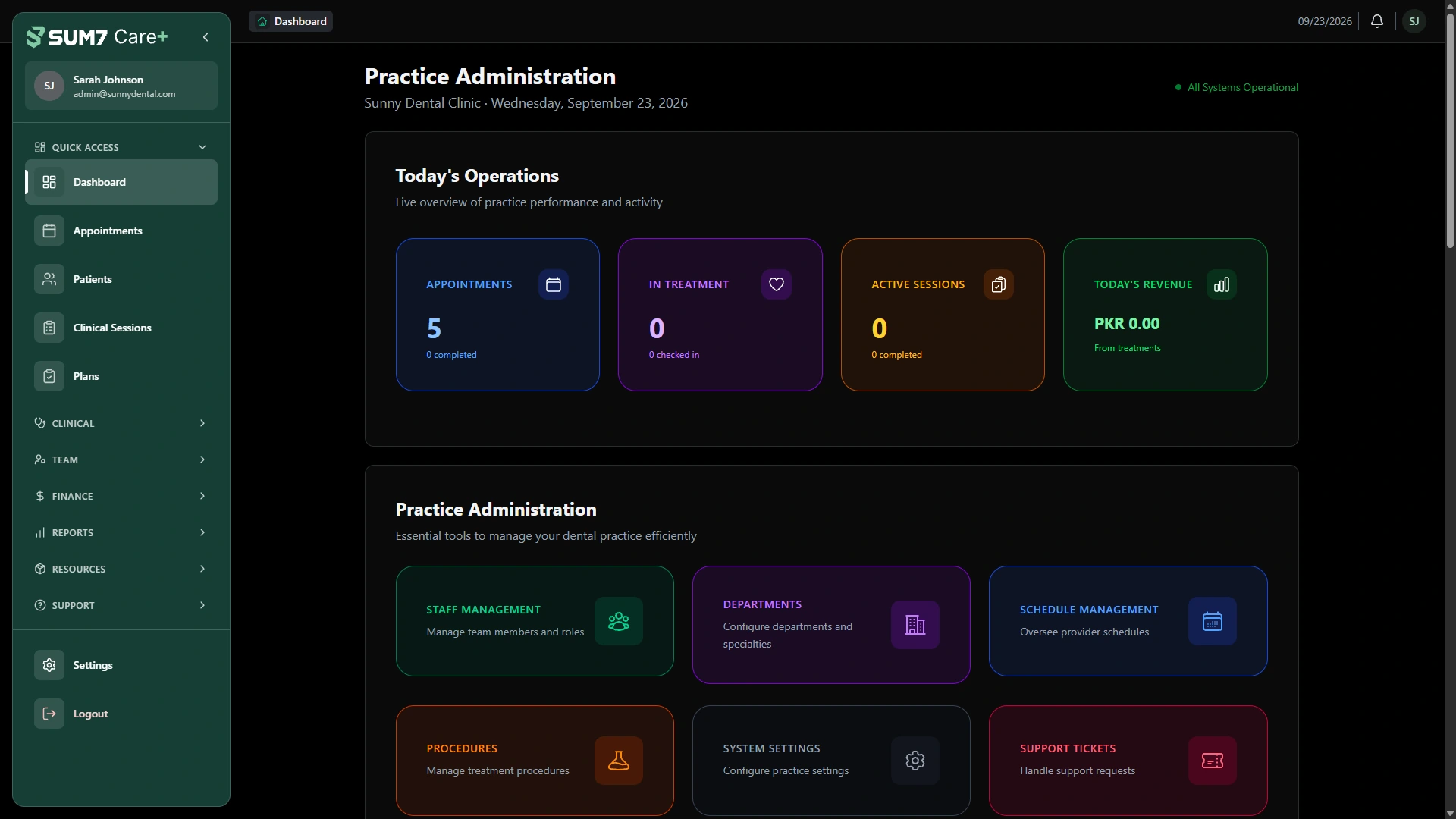
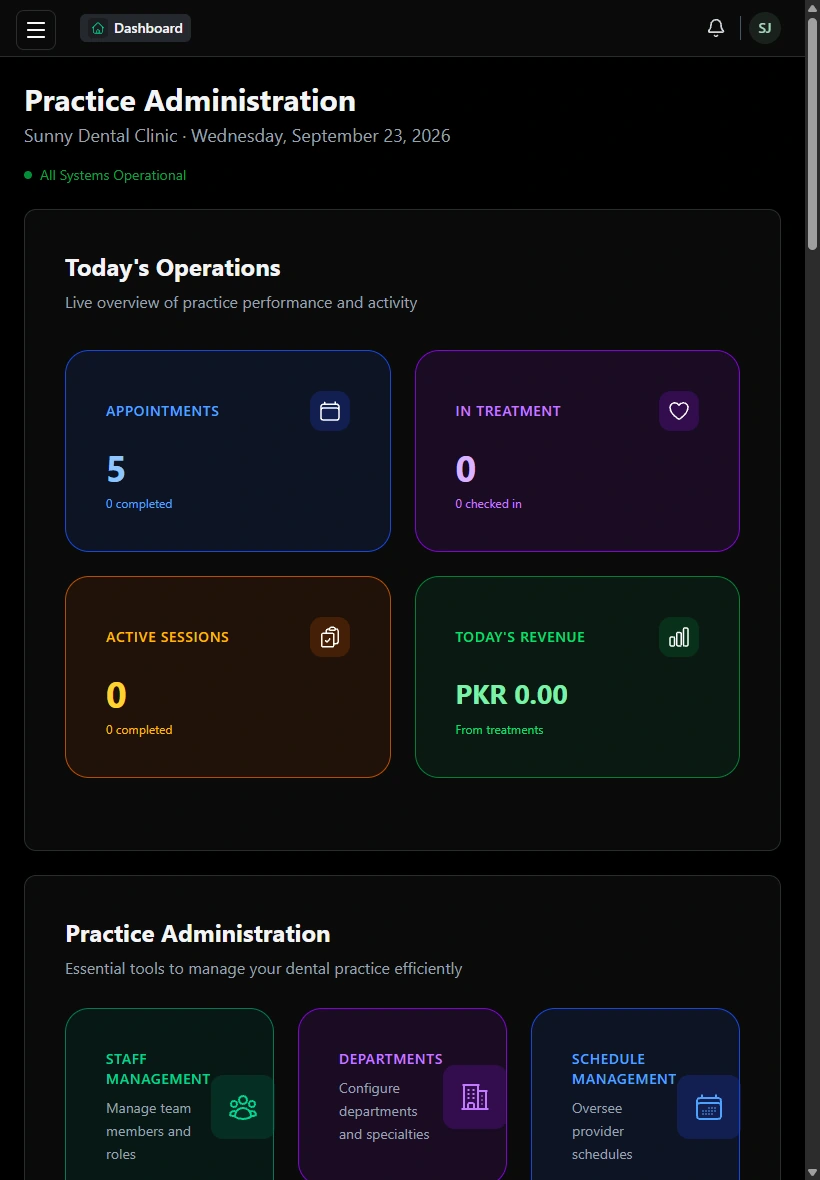
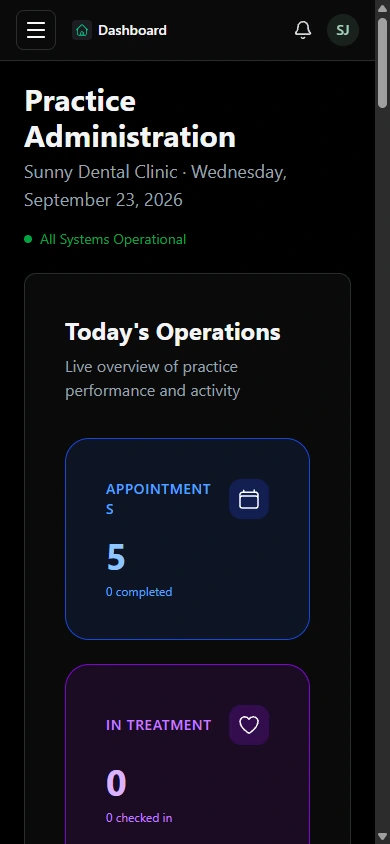
Get an overview of appointments and practice activity before opening a workflow.
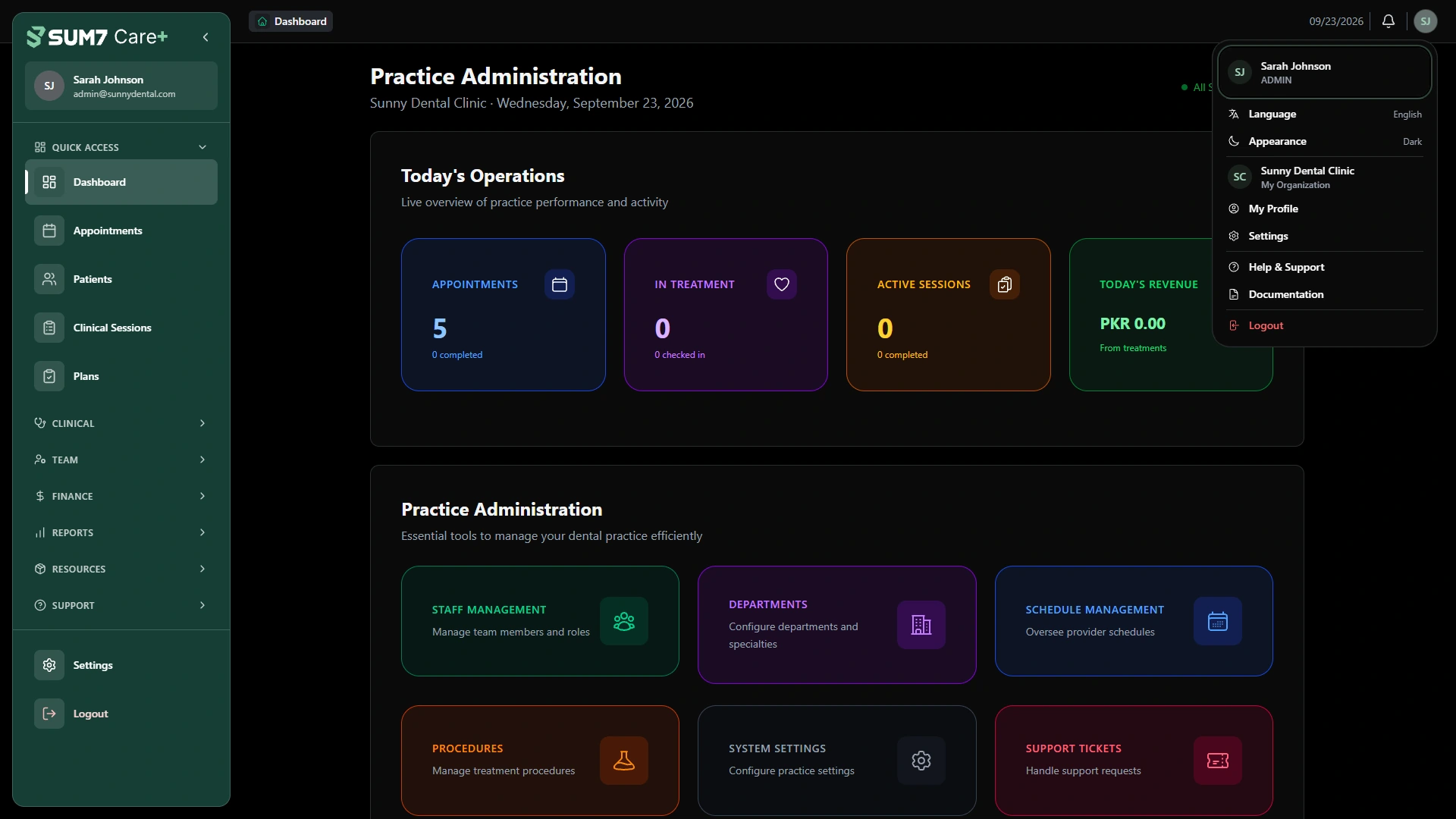
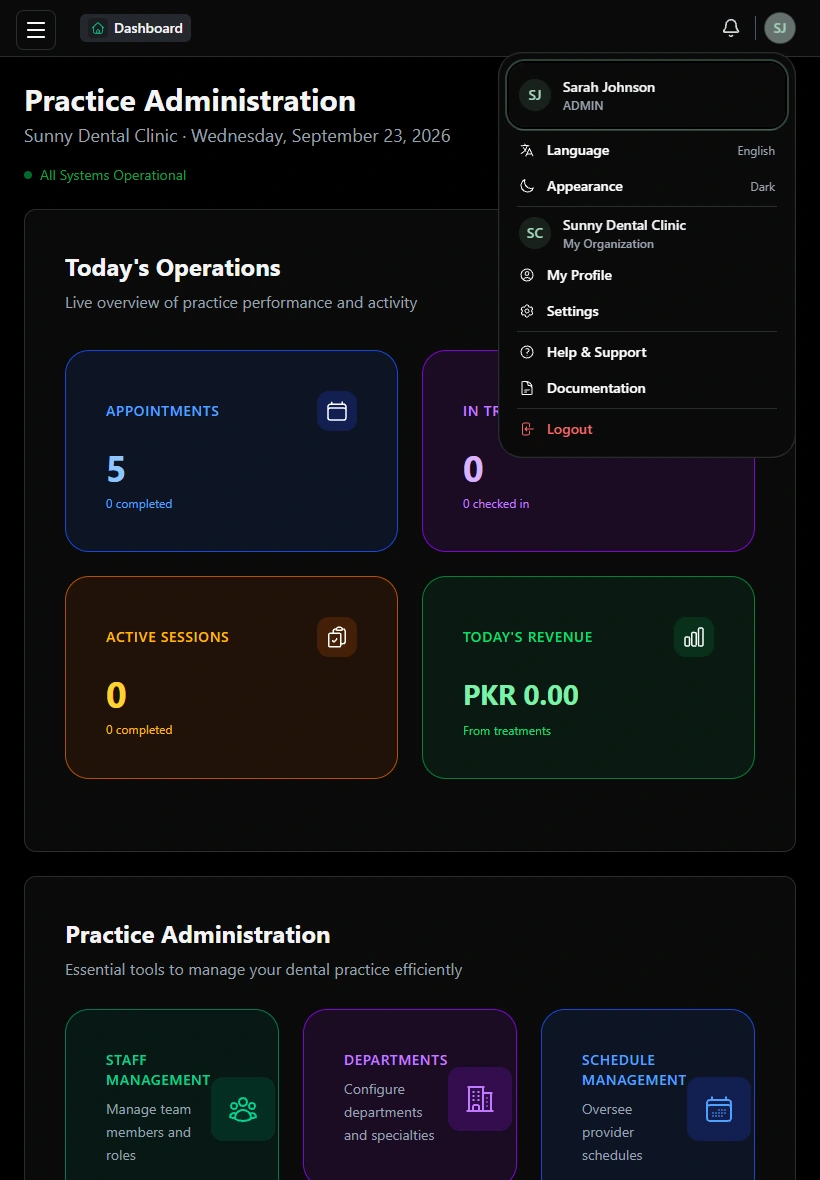
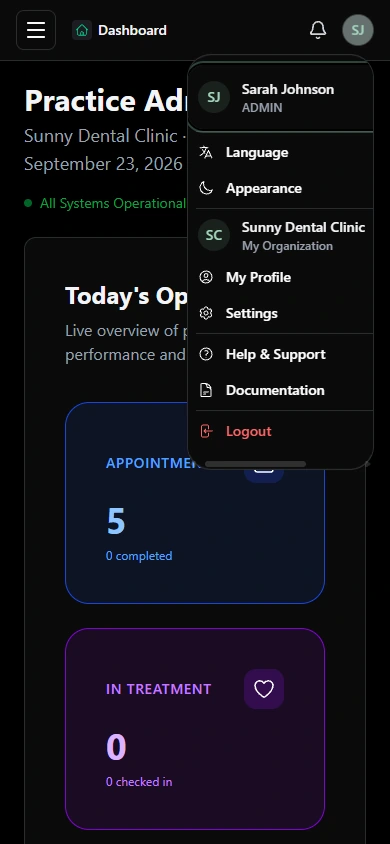
Open the account menu to find the logout action when your work is done.
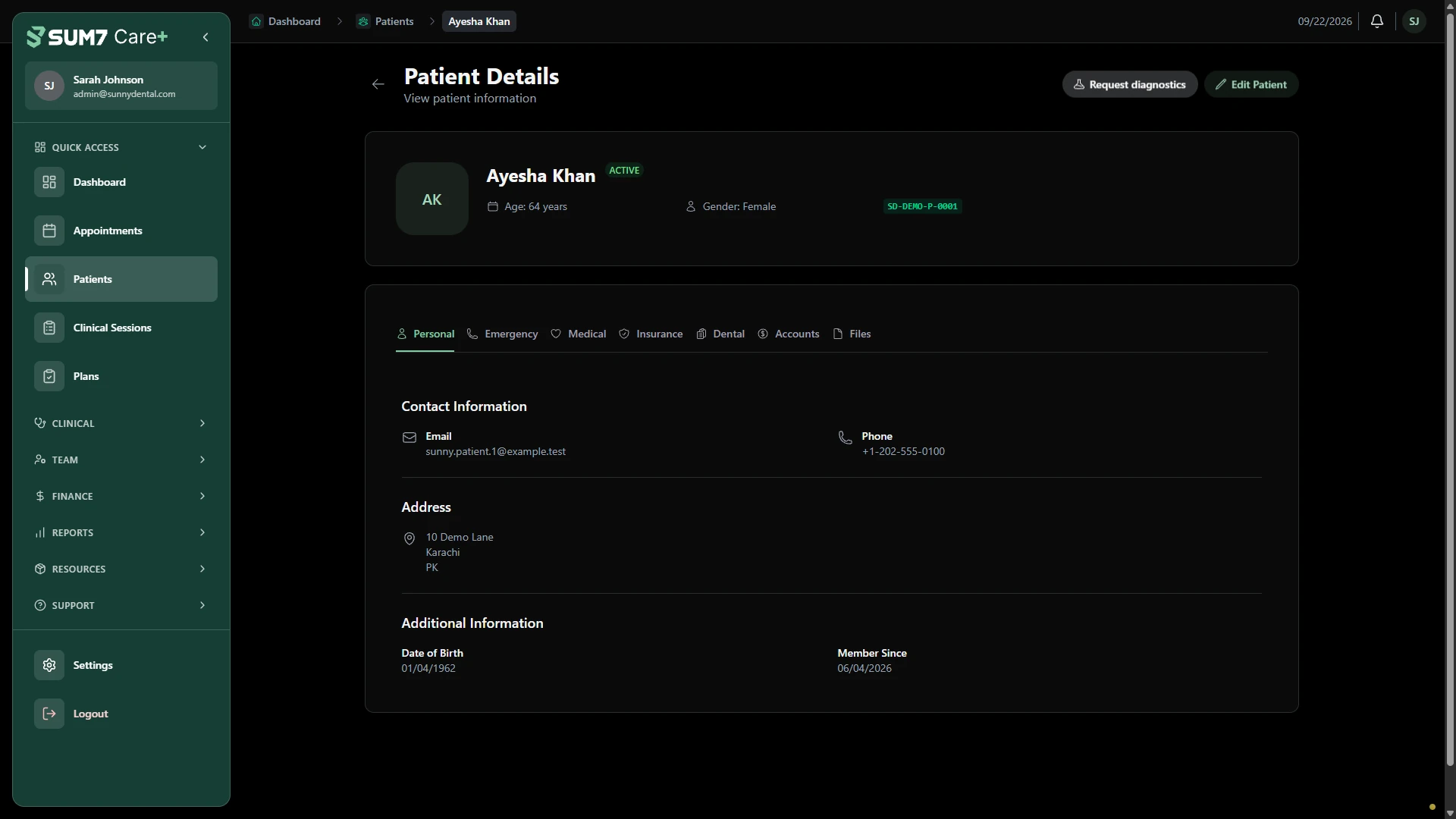
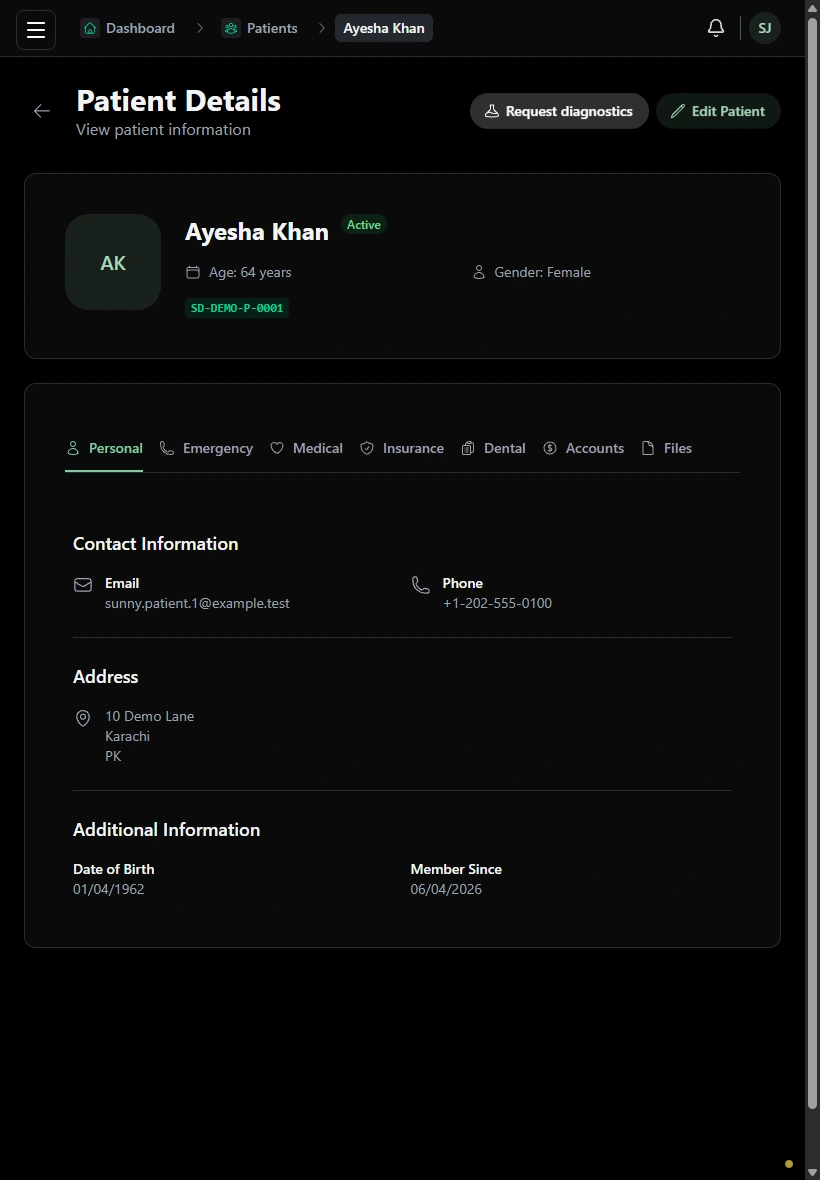
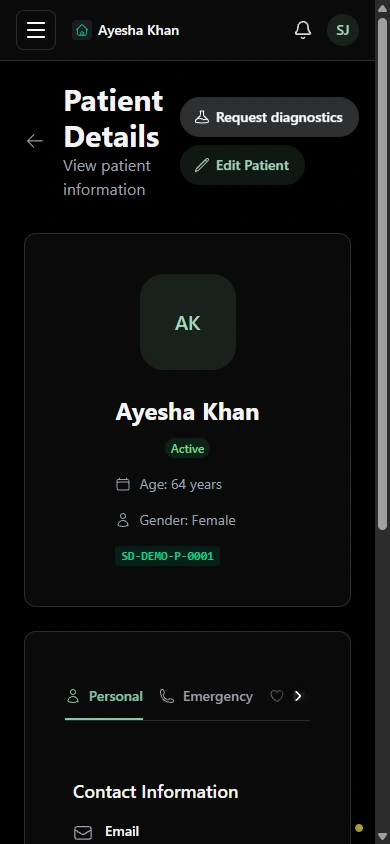
Keep contact details and medical context close, then update the record when something changes.
Explore the patient profile and the records available to the practice.
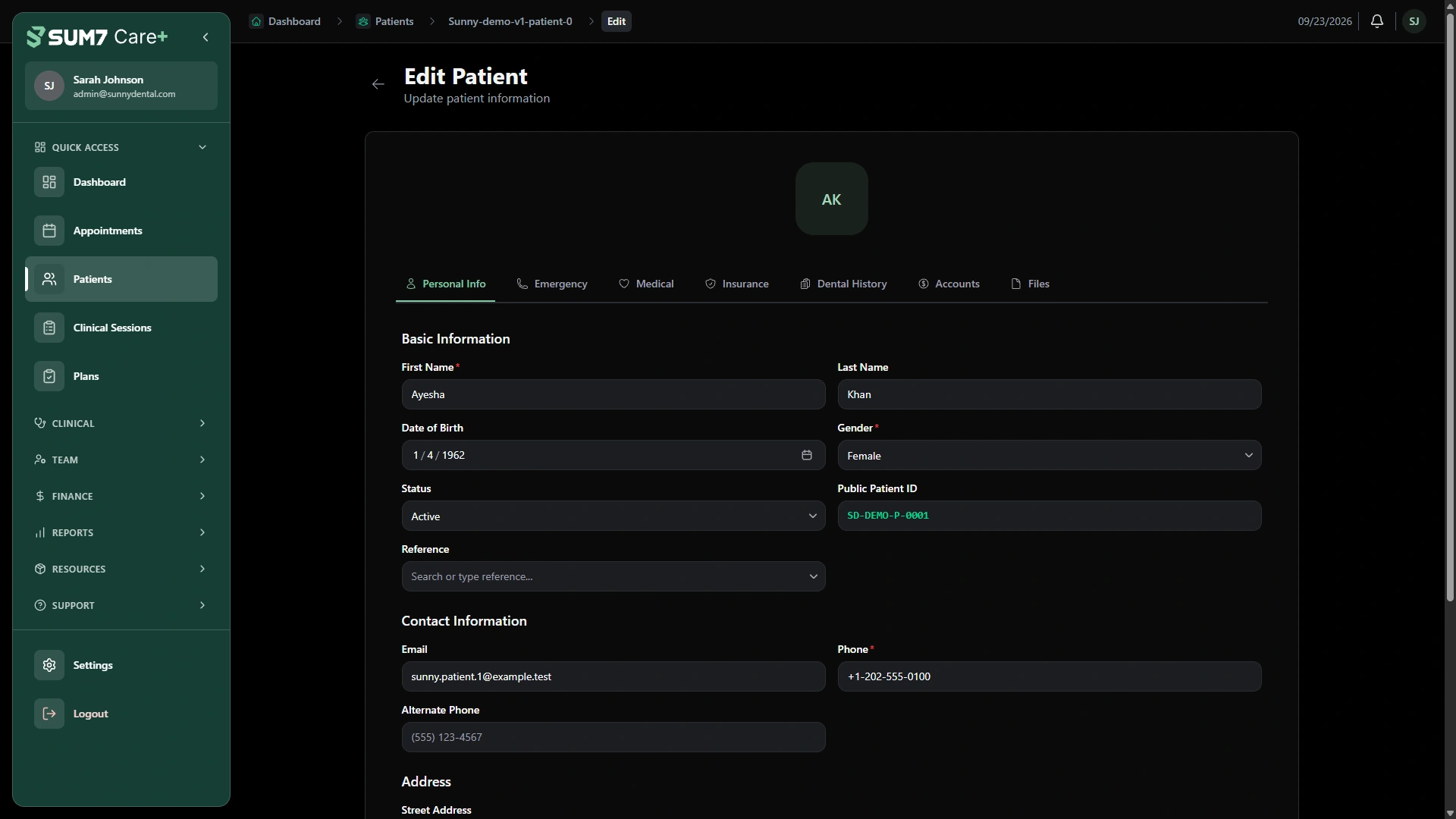
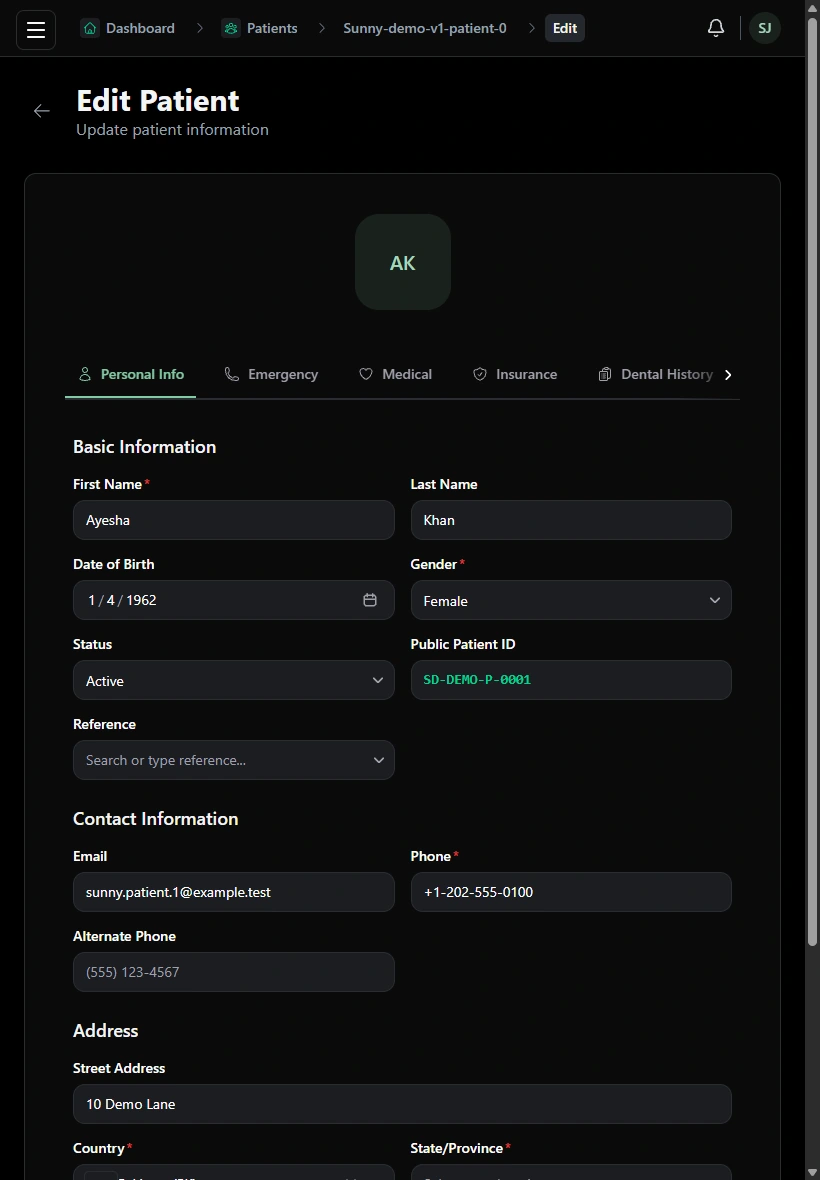
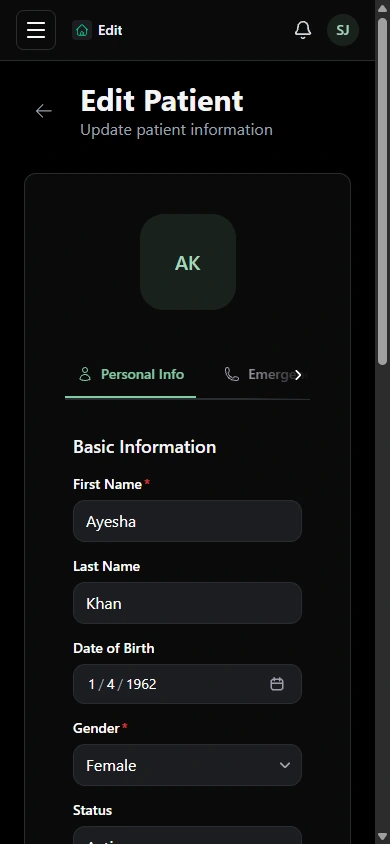
Review the populated patient form before saving changes.
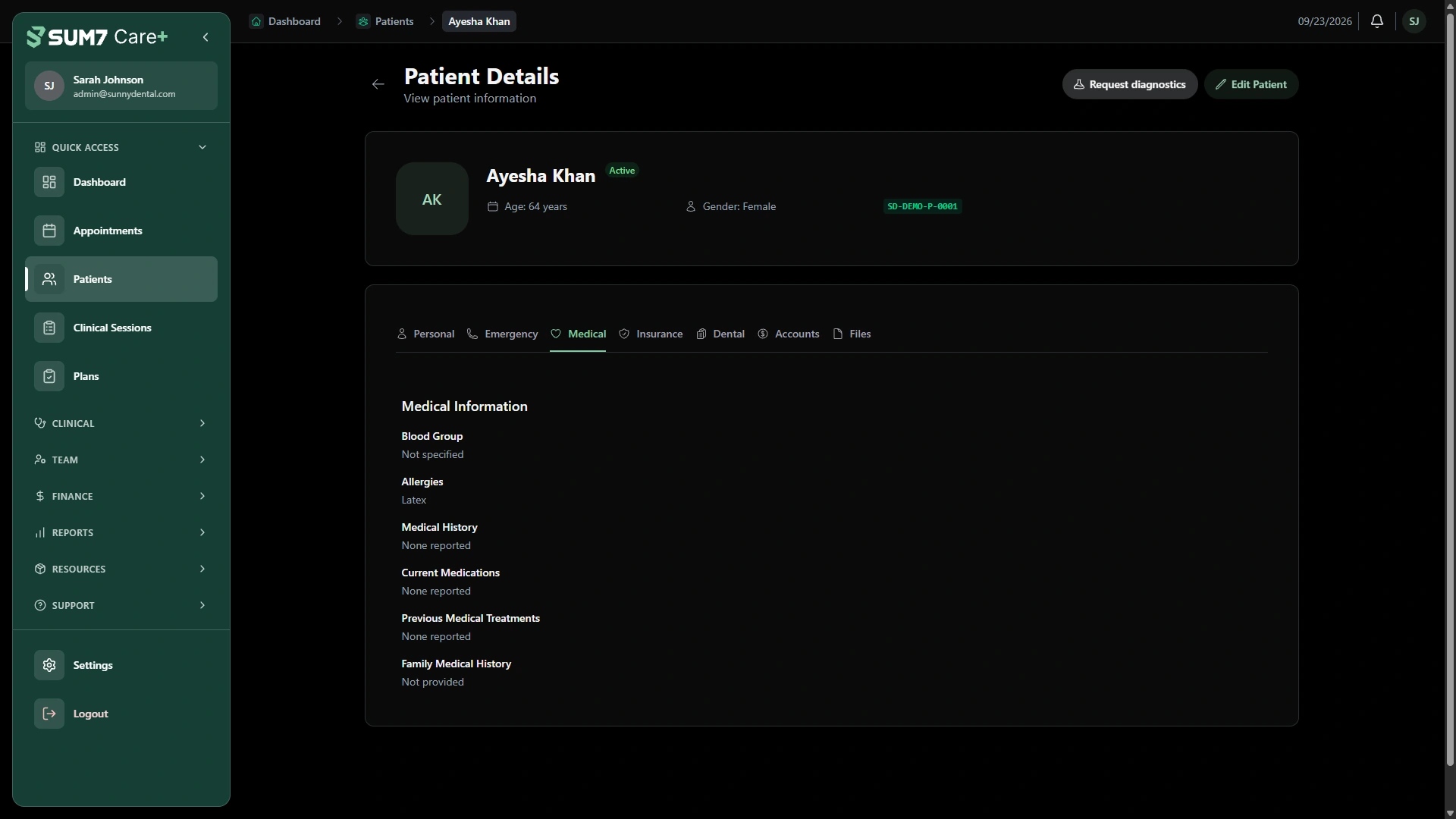
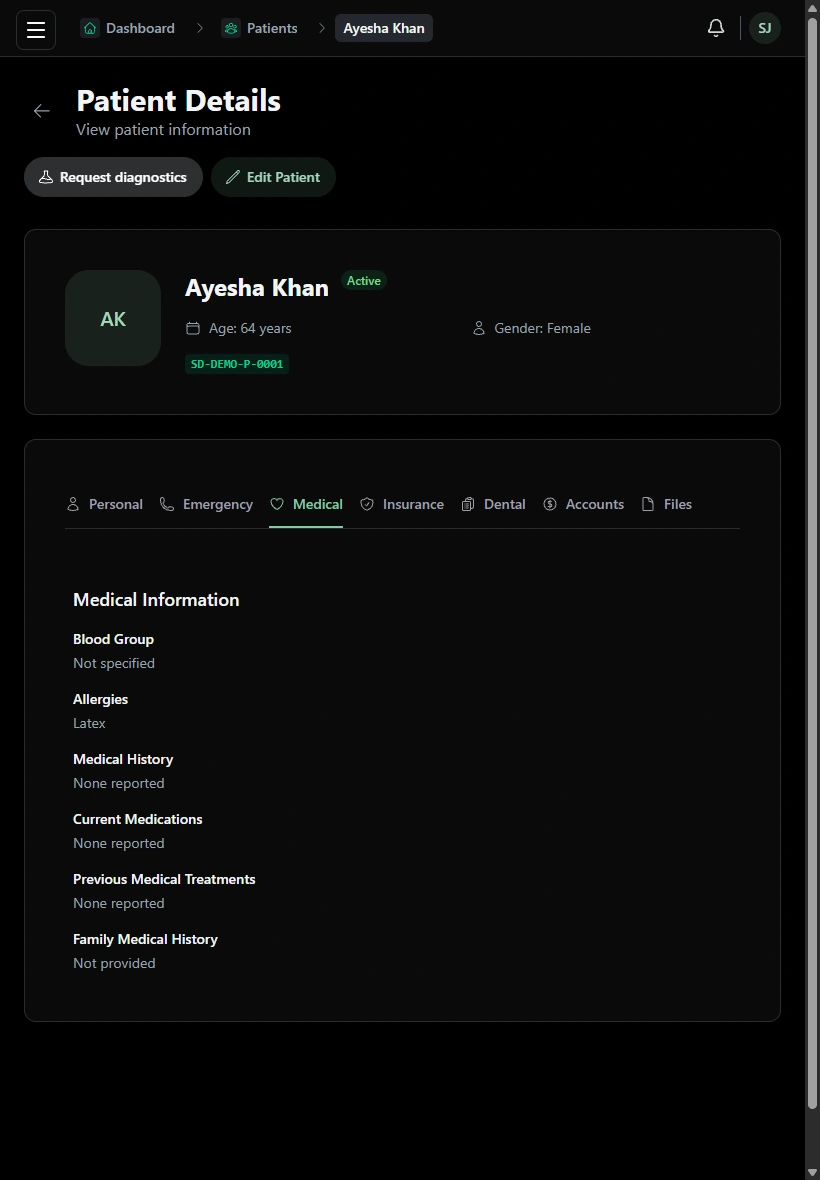
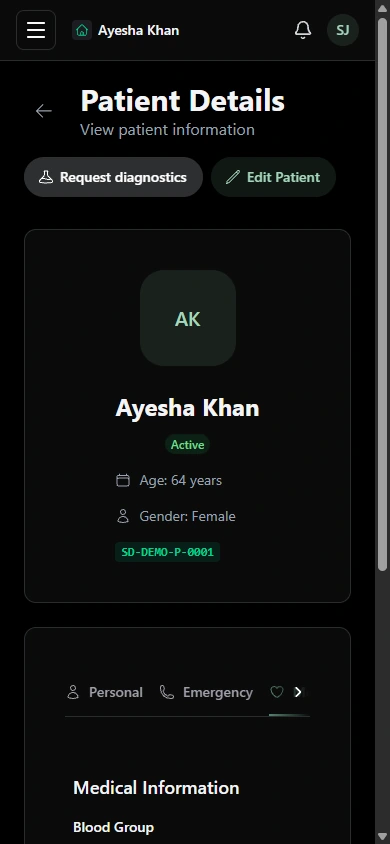
Keep medical information available alongside the patient profile.
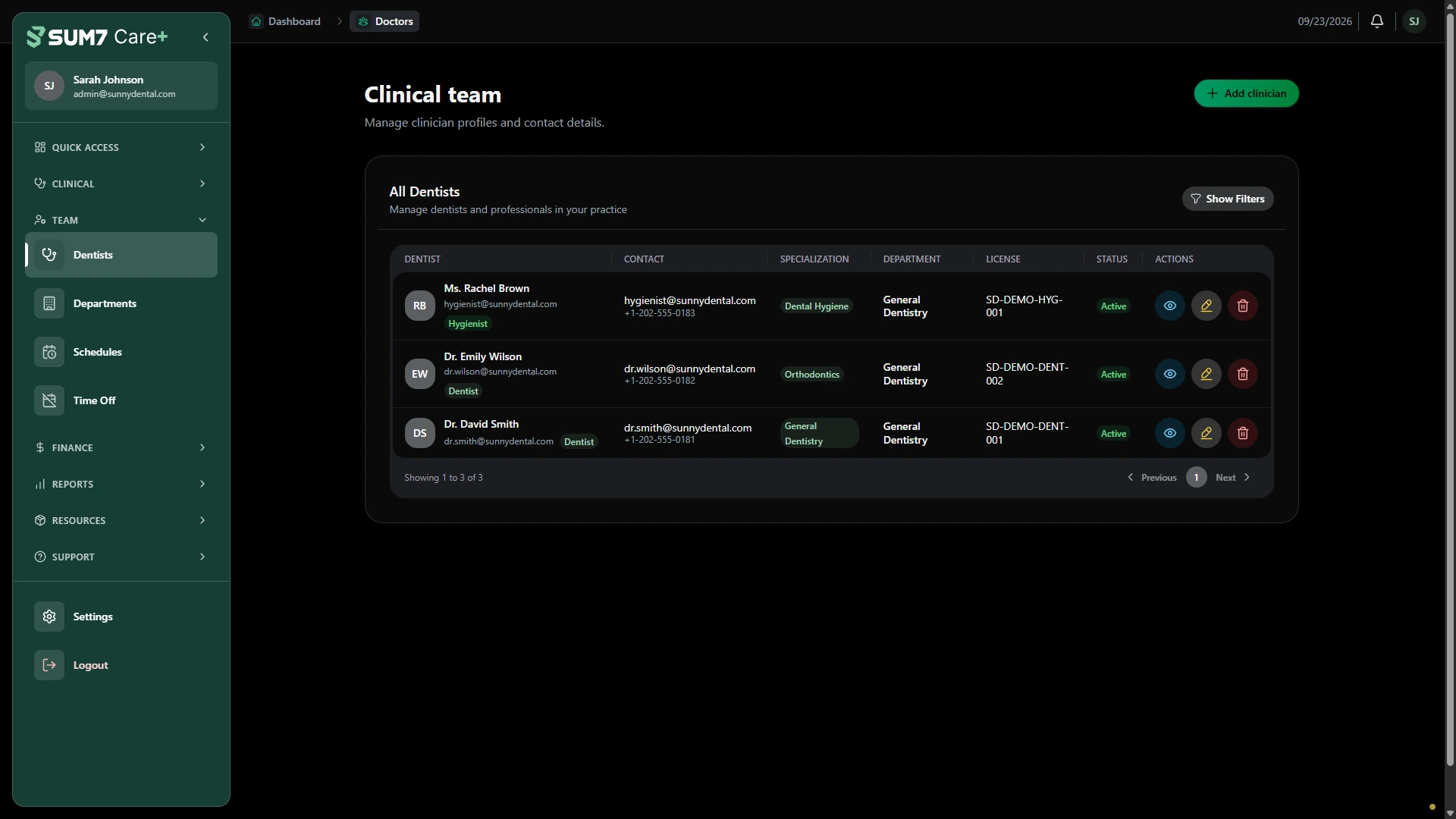
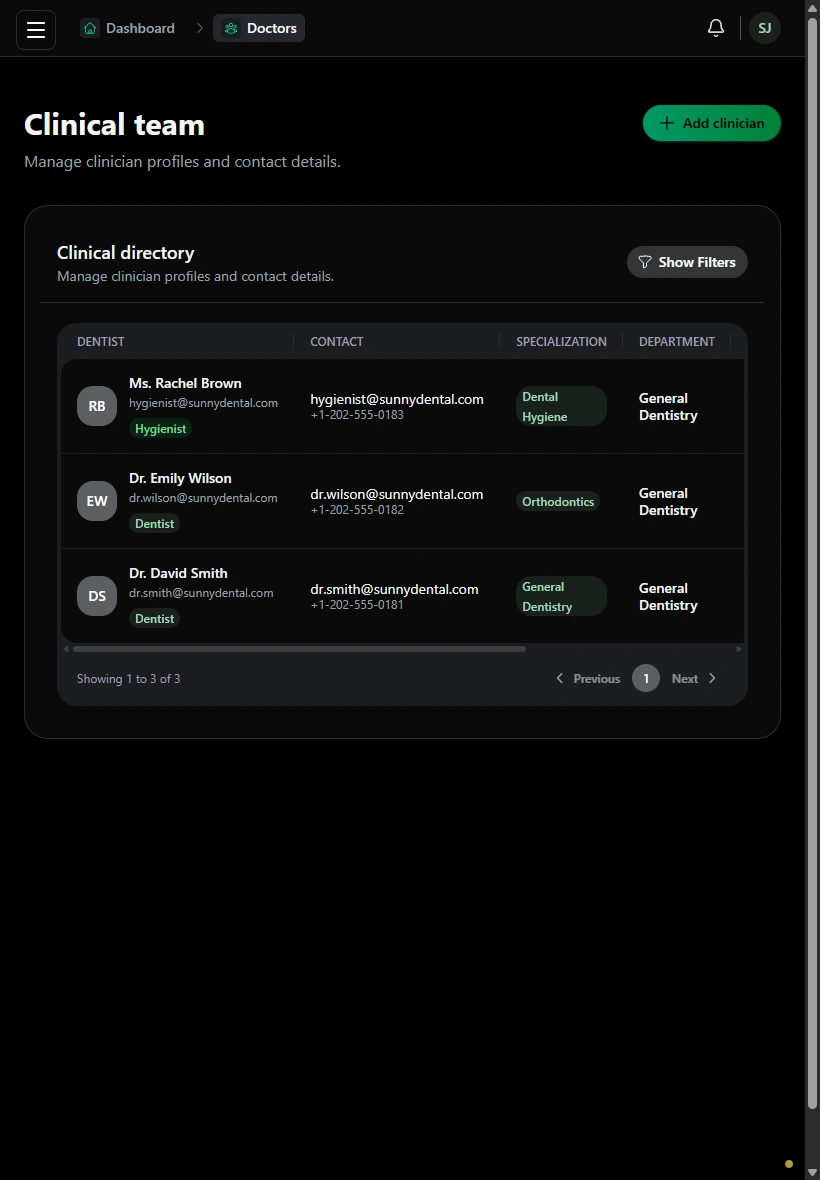
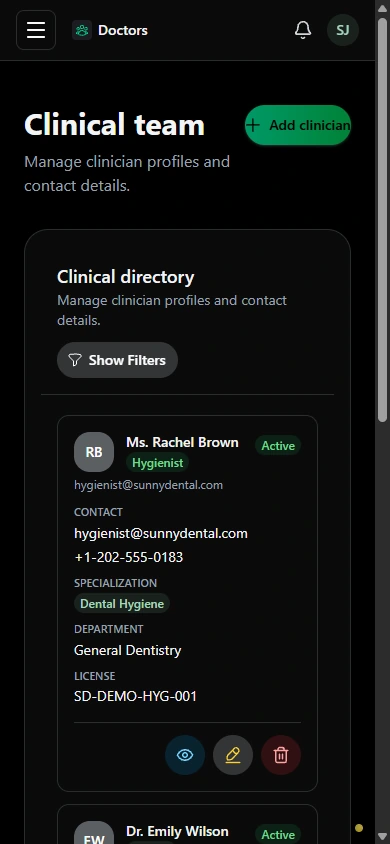
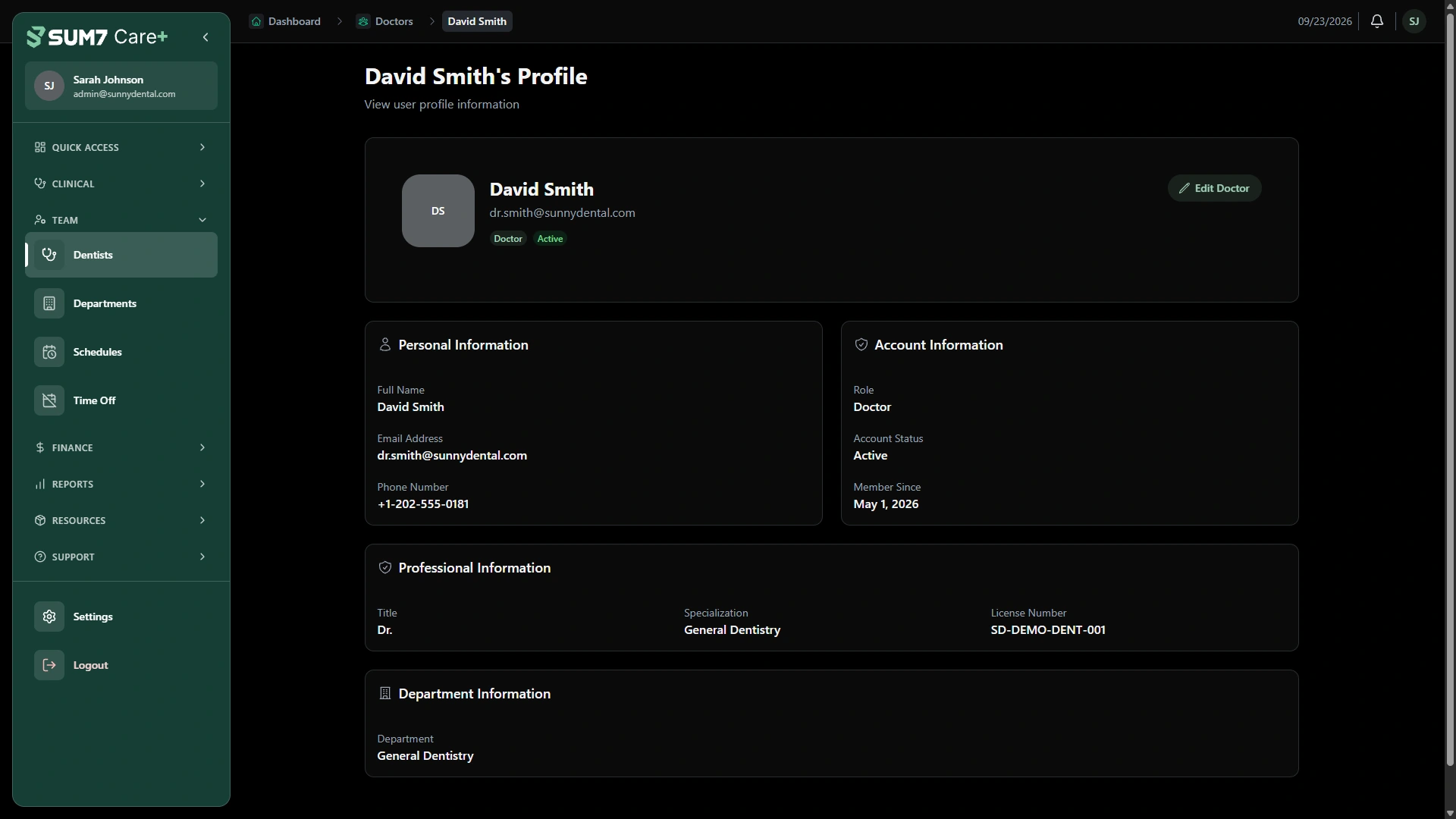
Find a clinician in the directory and open their professional profile.
Use the doctor directory to review clinician profiles and contact information. Access to administration and clinical work depends on assigned permissions.
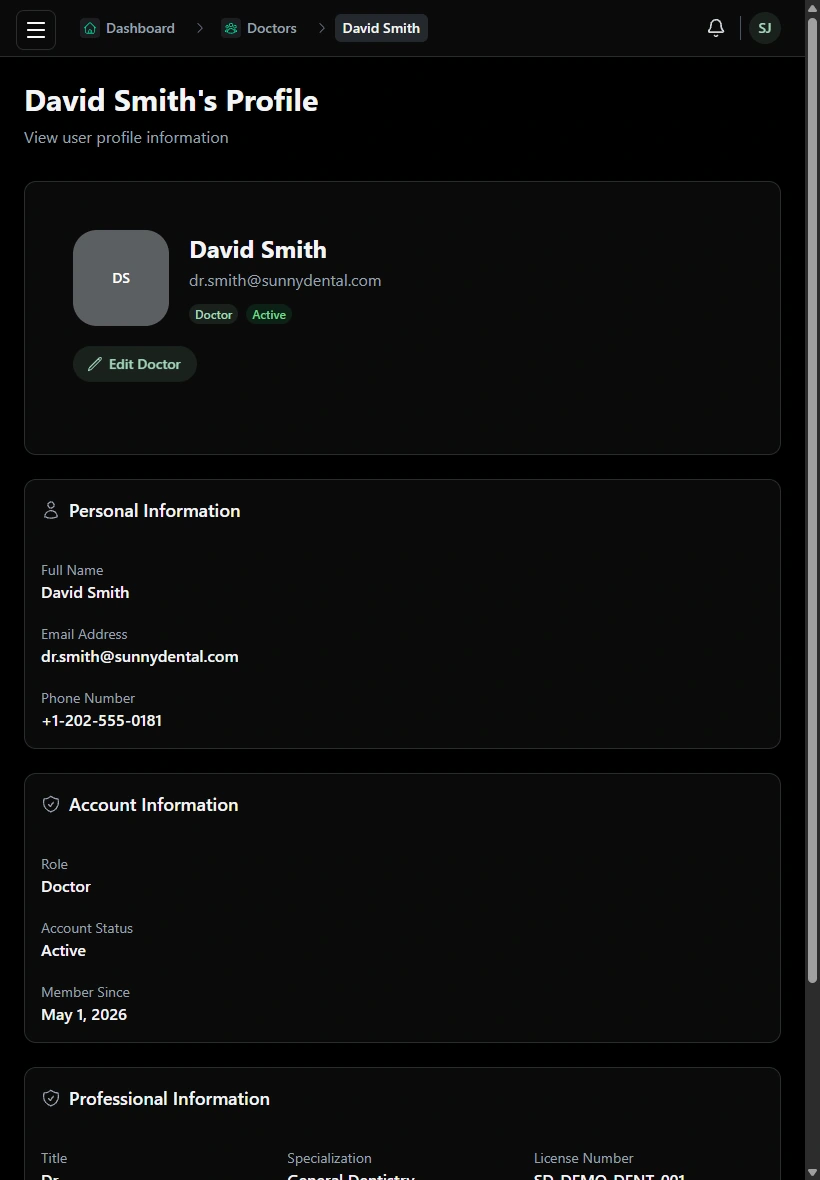
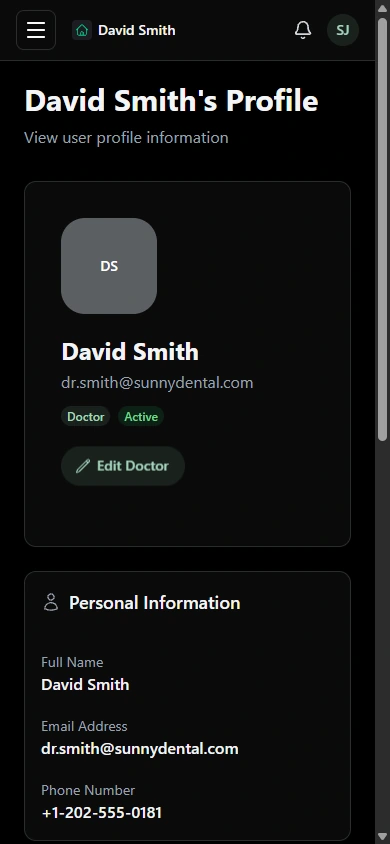
Review contact information, role and professional details for the selected clinician.
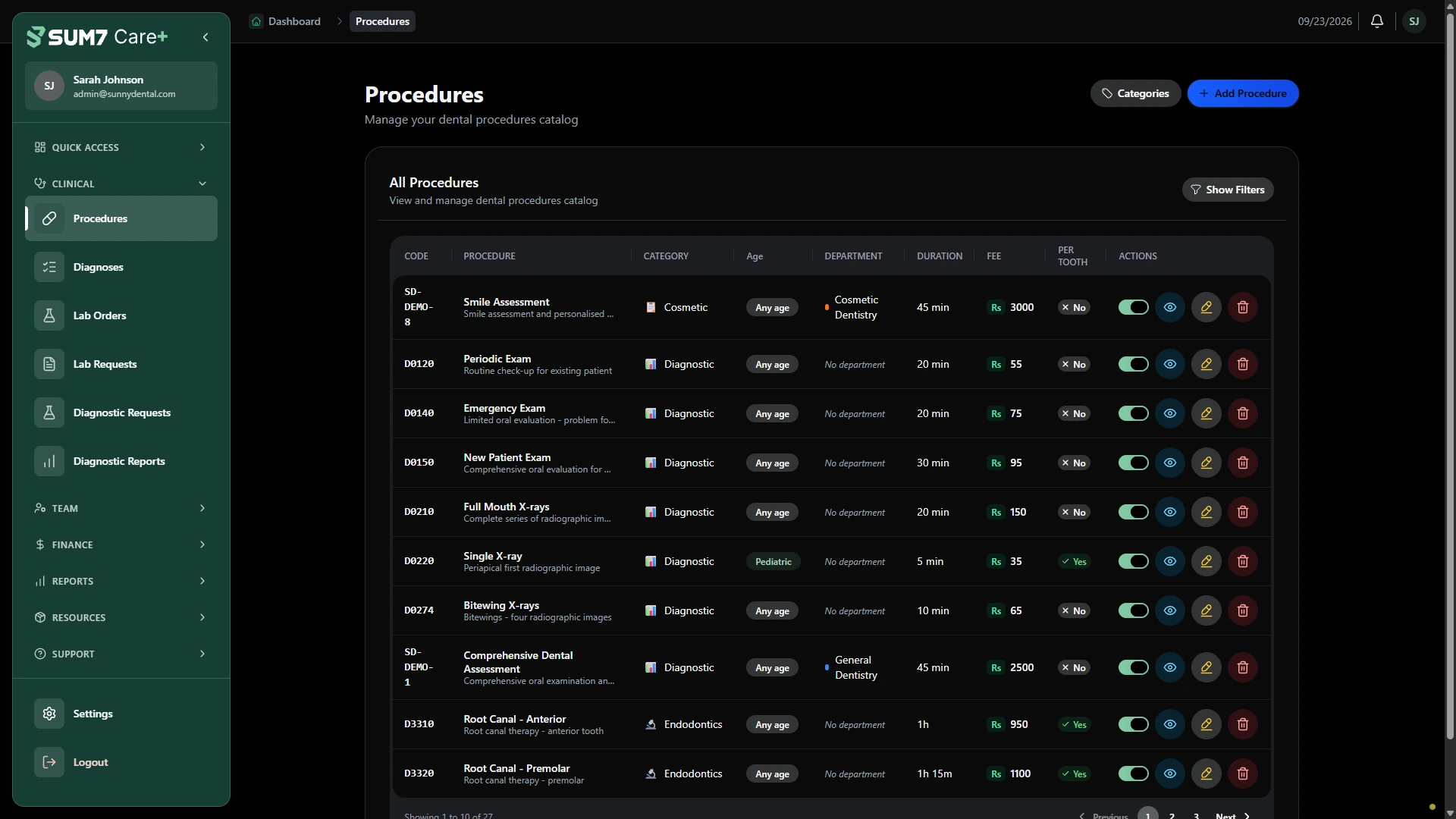
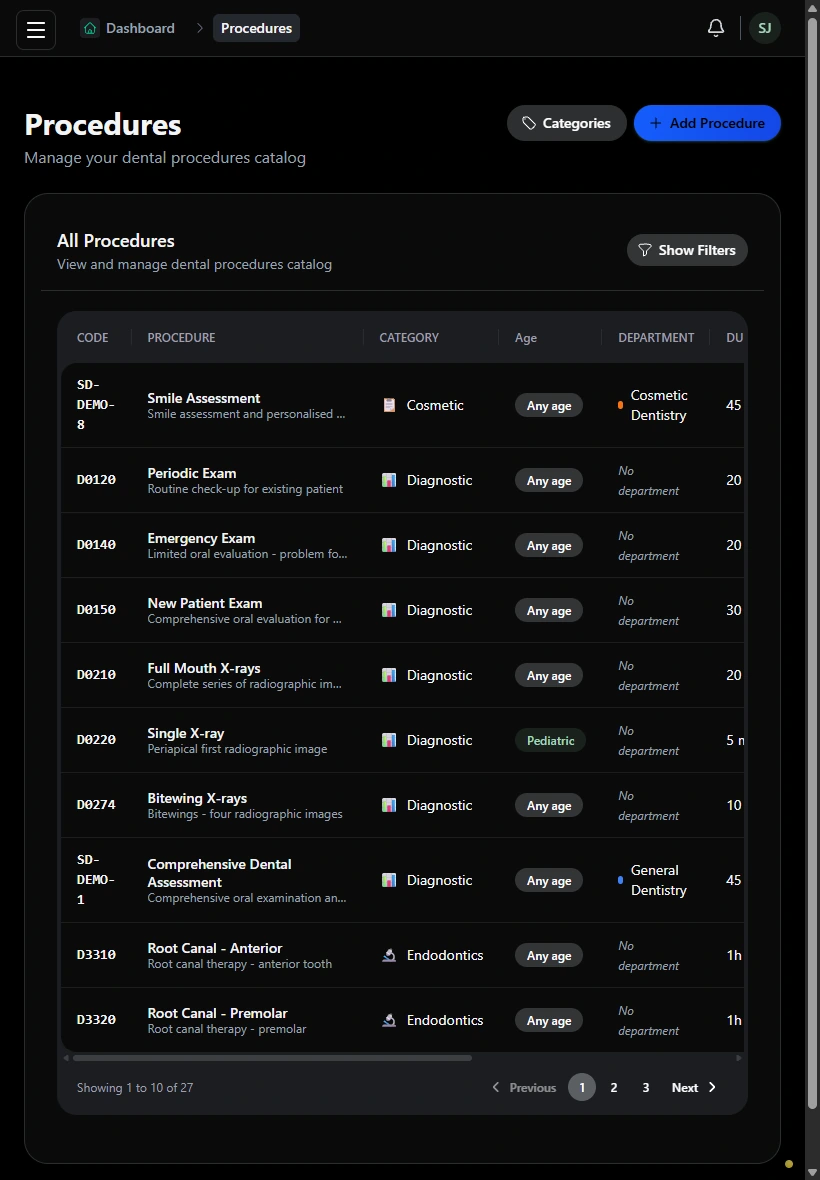
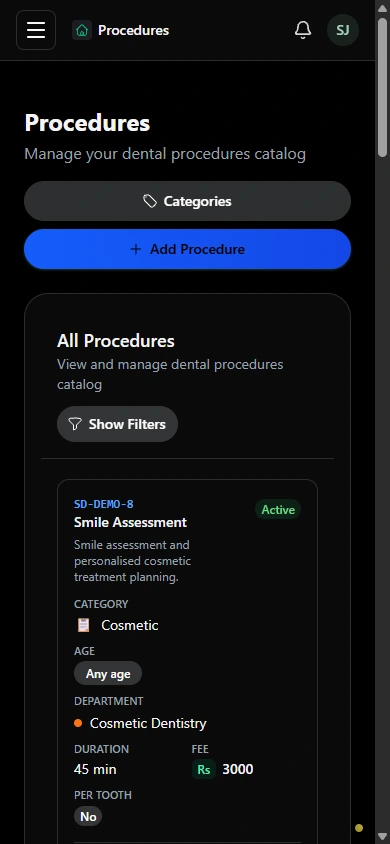
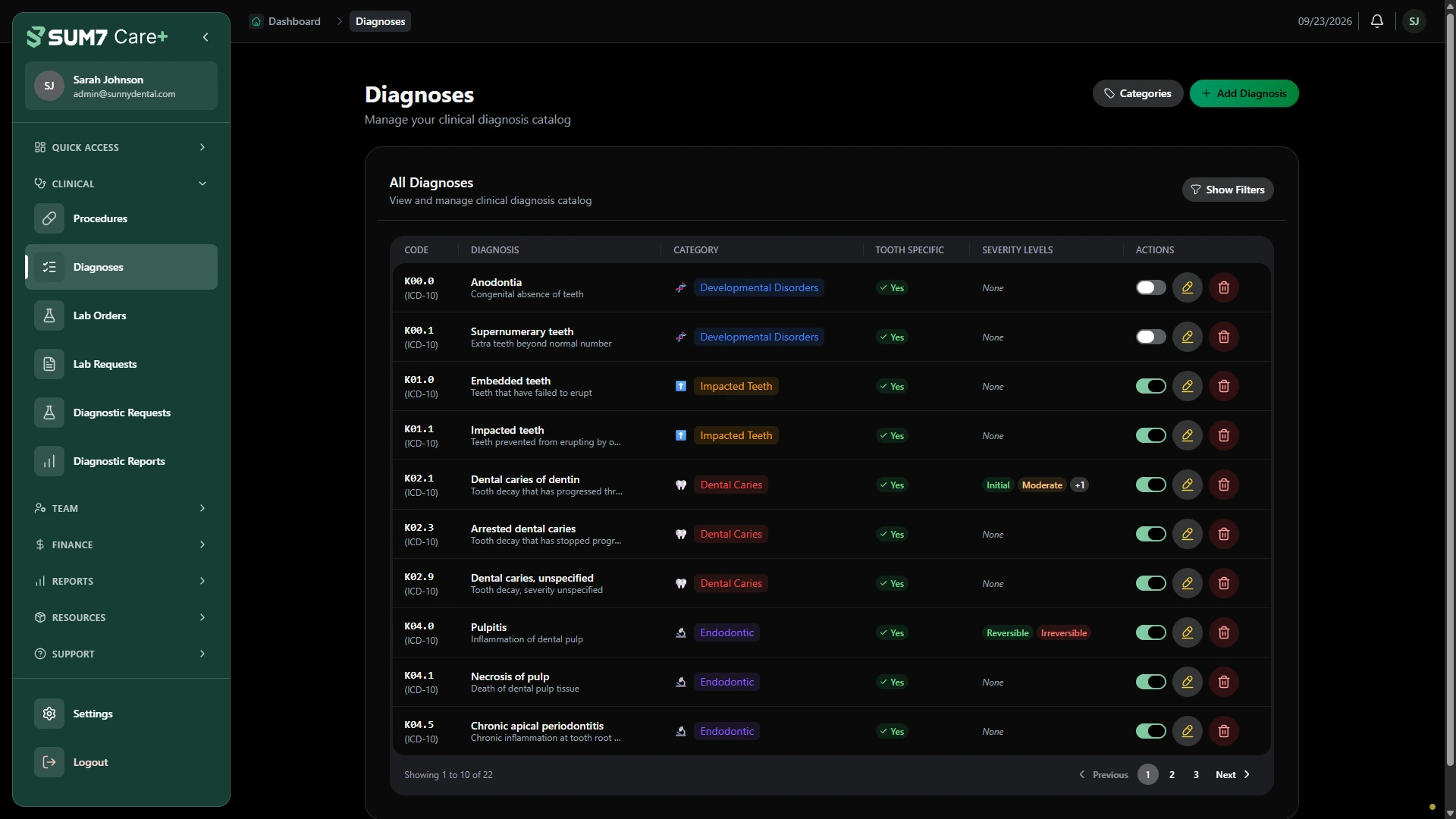
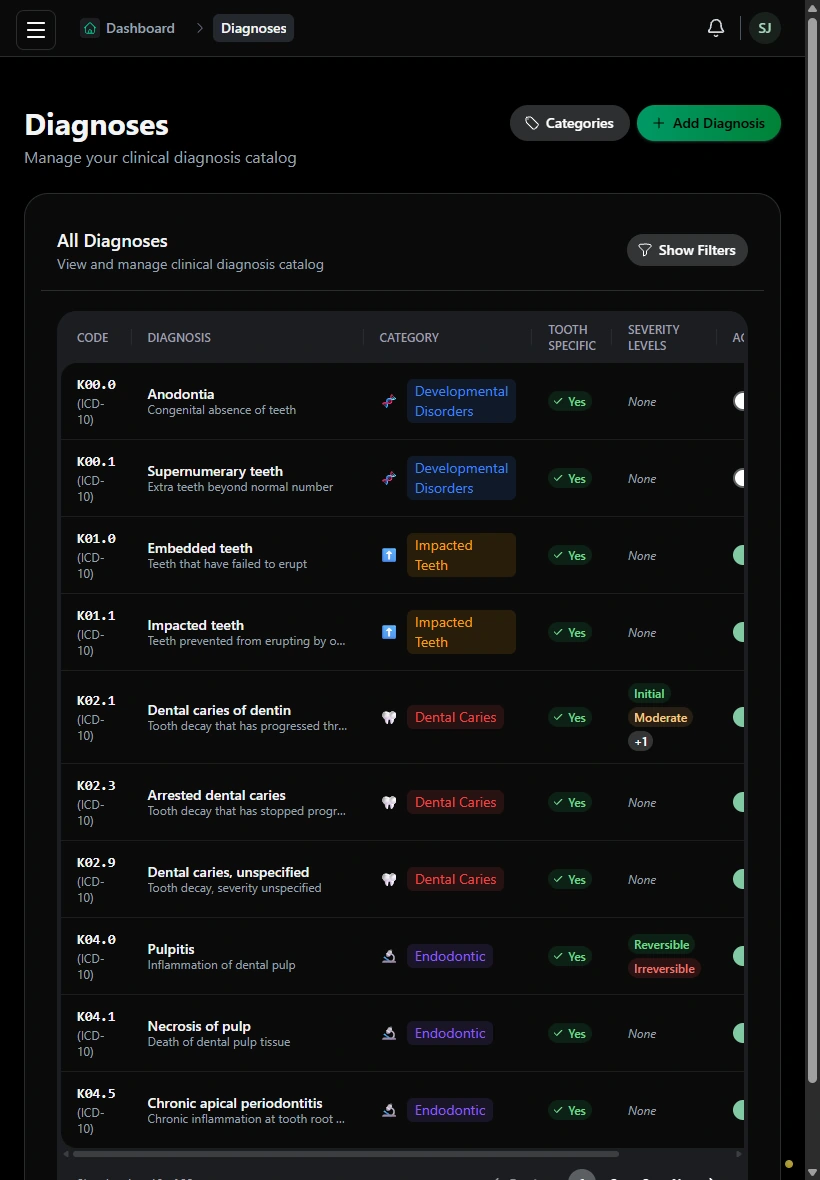
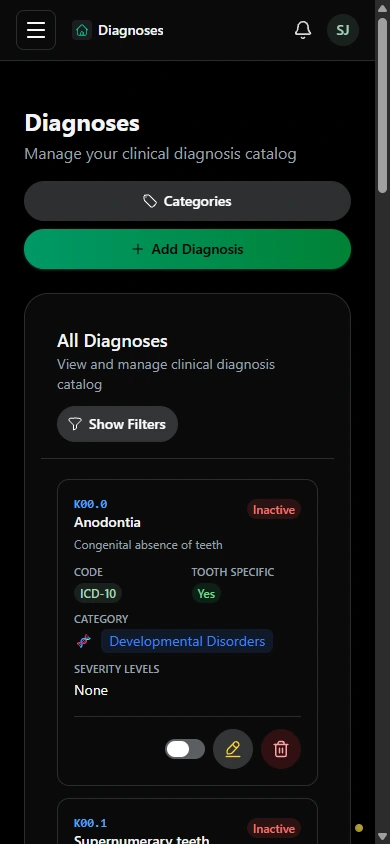
Review the procedures and diagnoses your team uses when documenting treatment.
Review the practice’s configured procedures and categories before using them in treatment workflows.
Browse the configured diagnosis catalog and categories used by the practice. Clinical findings remain part of the patient’s recorded care.
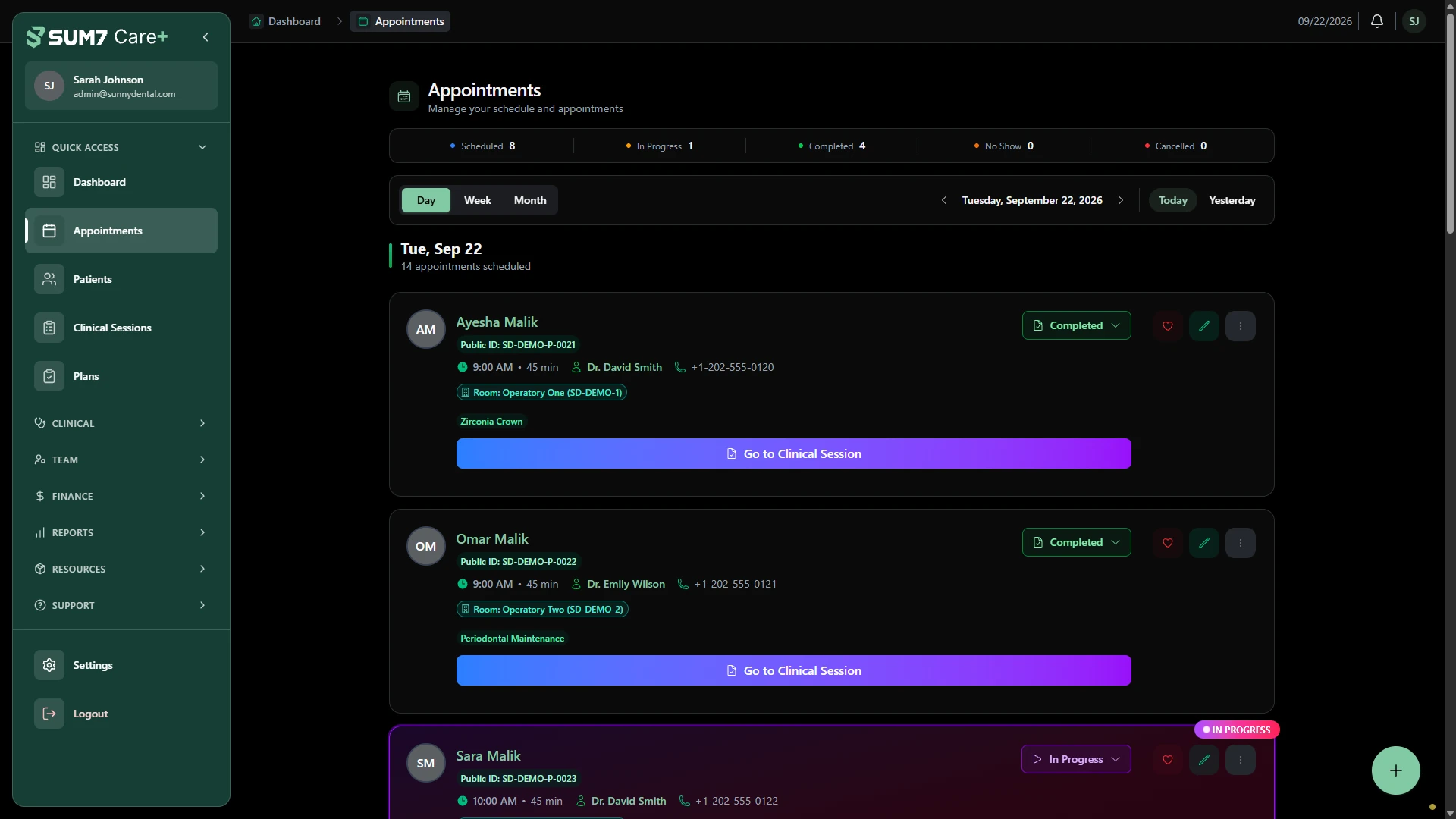
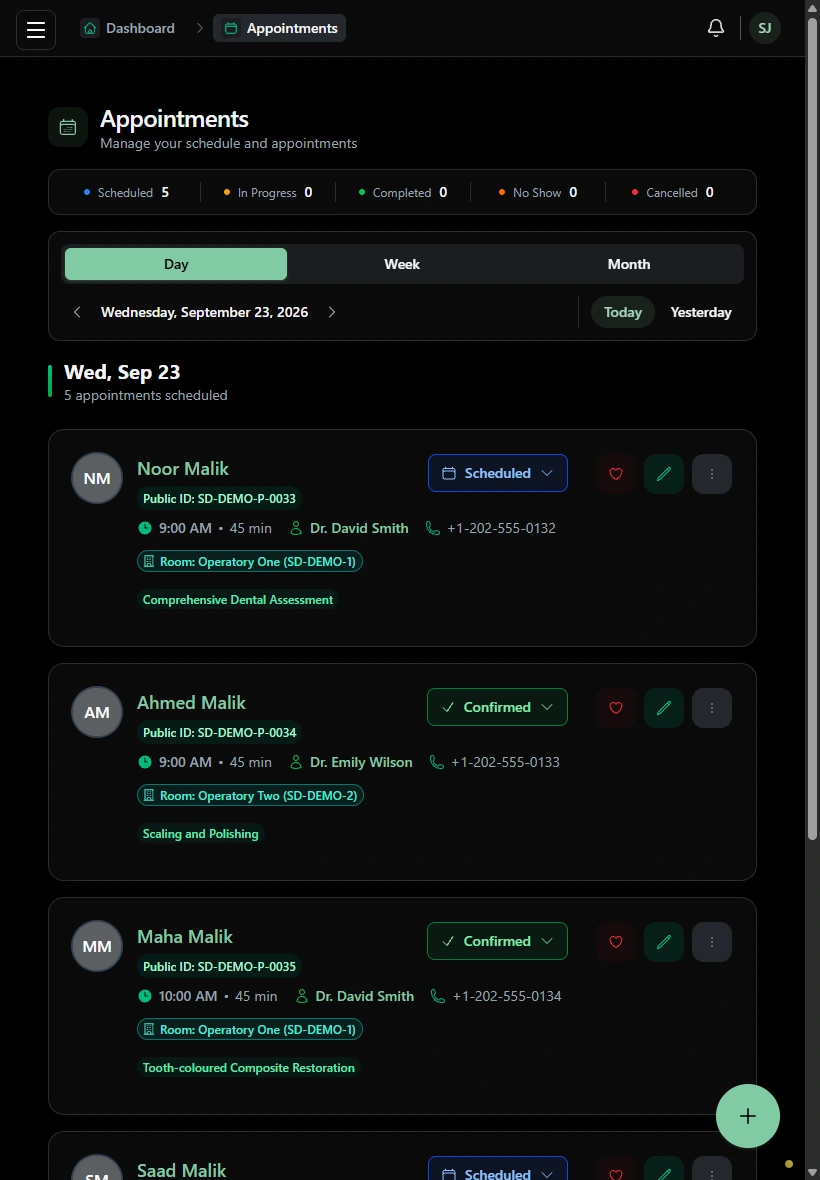
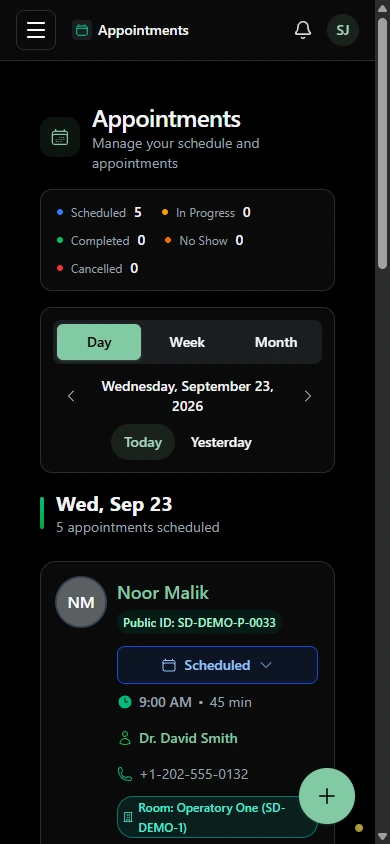
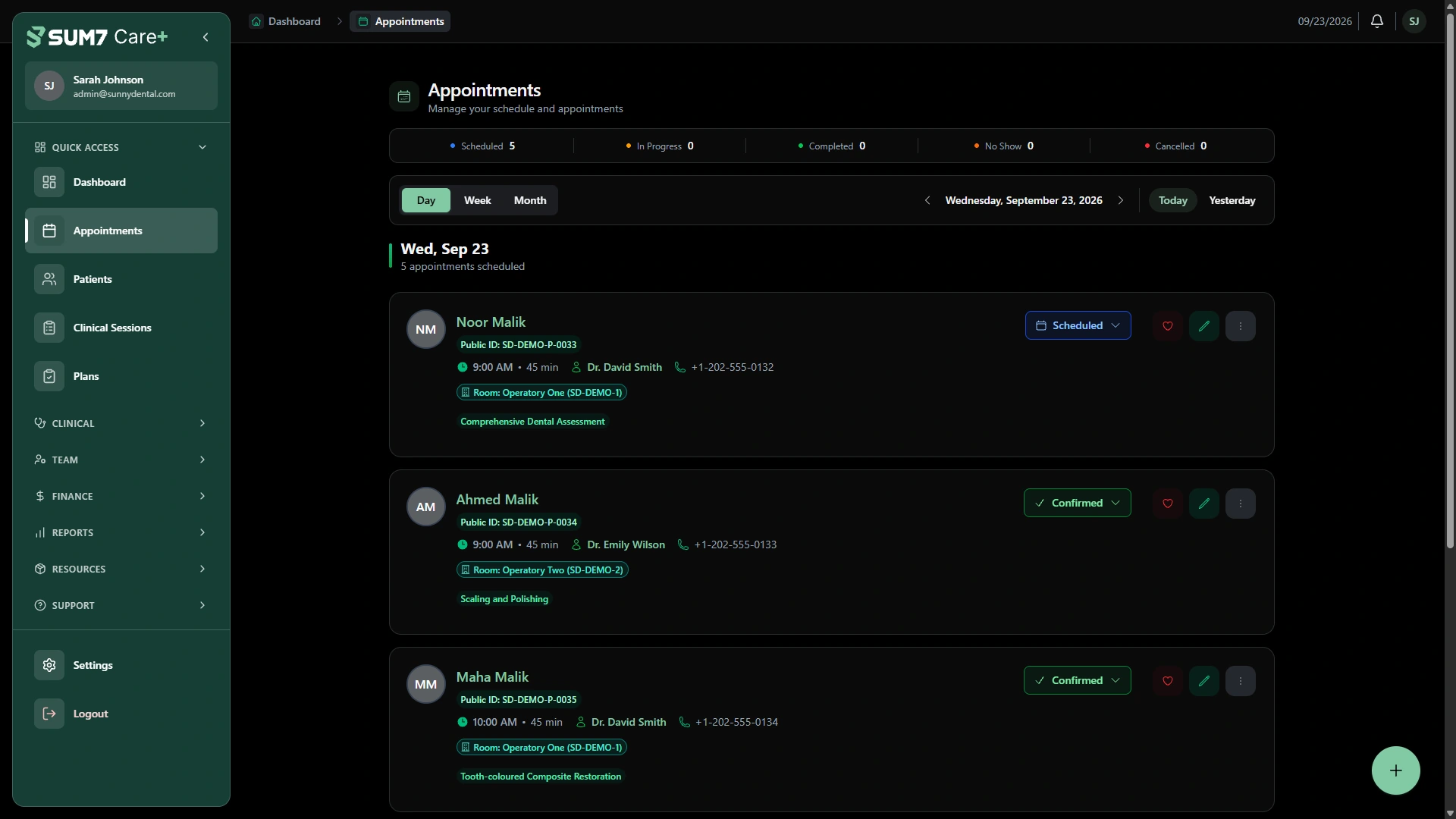
Review the schedule, check the patient and procedure details, and follow appointment status.
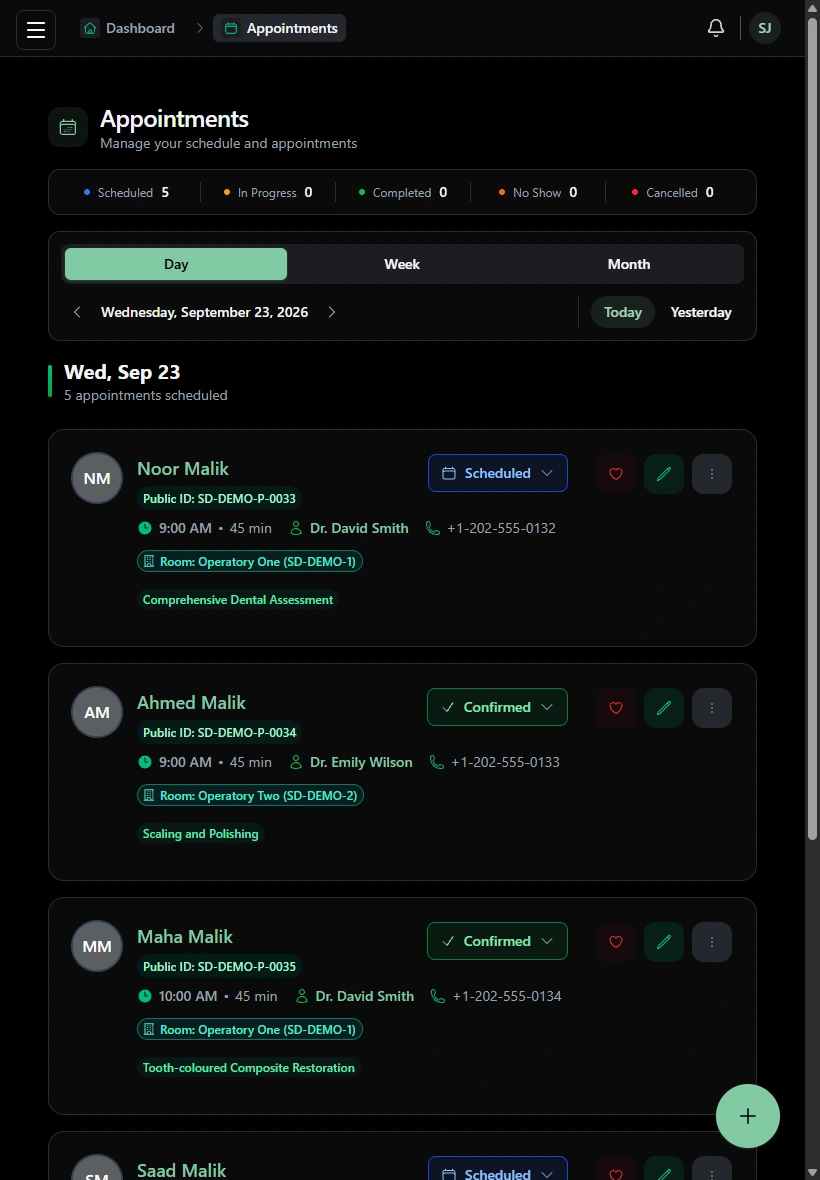
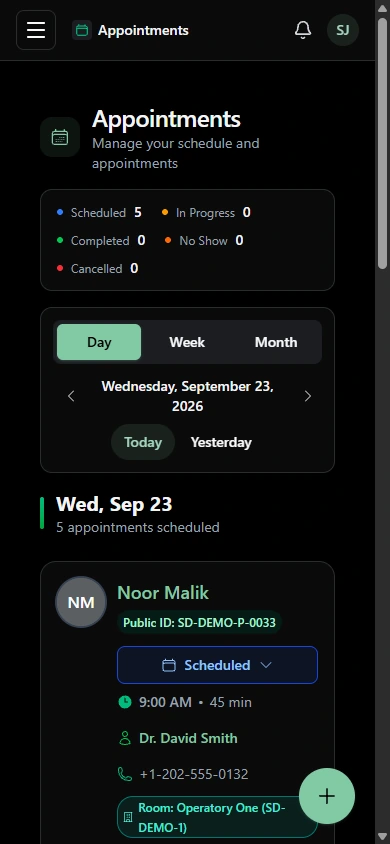
Review scheduled visits, patient names and appointment statuses in one place.
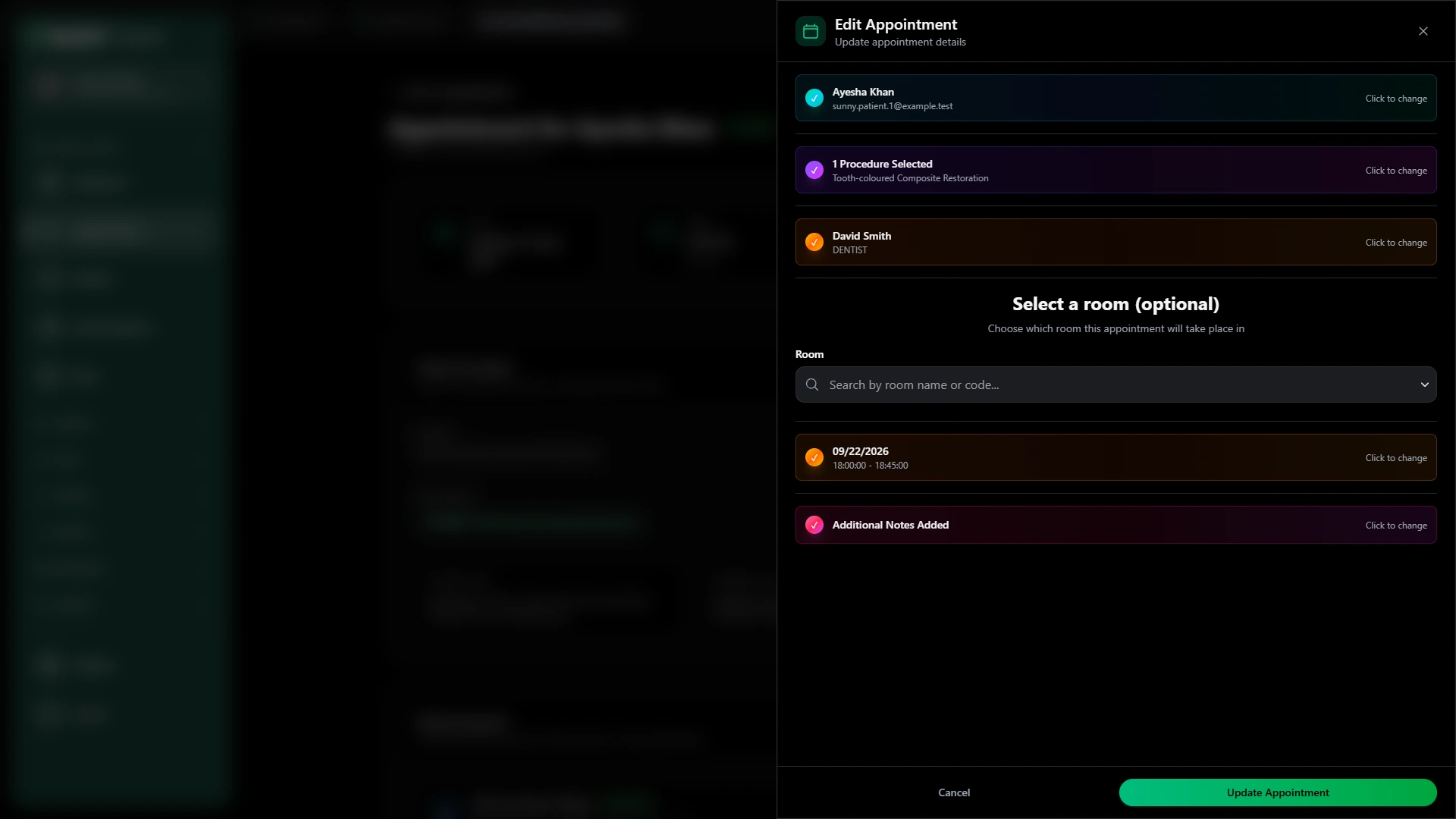
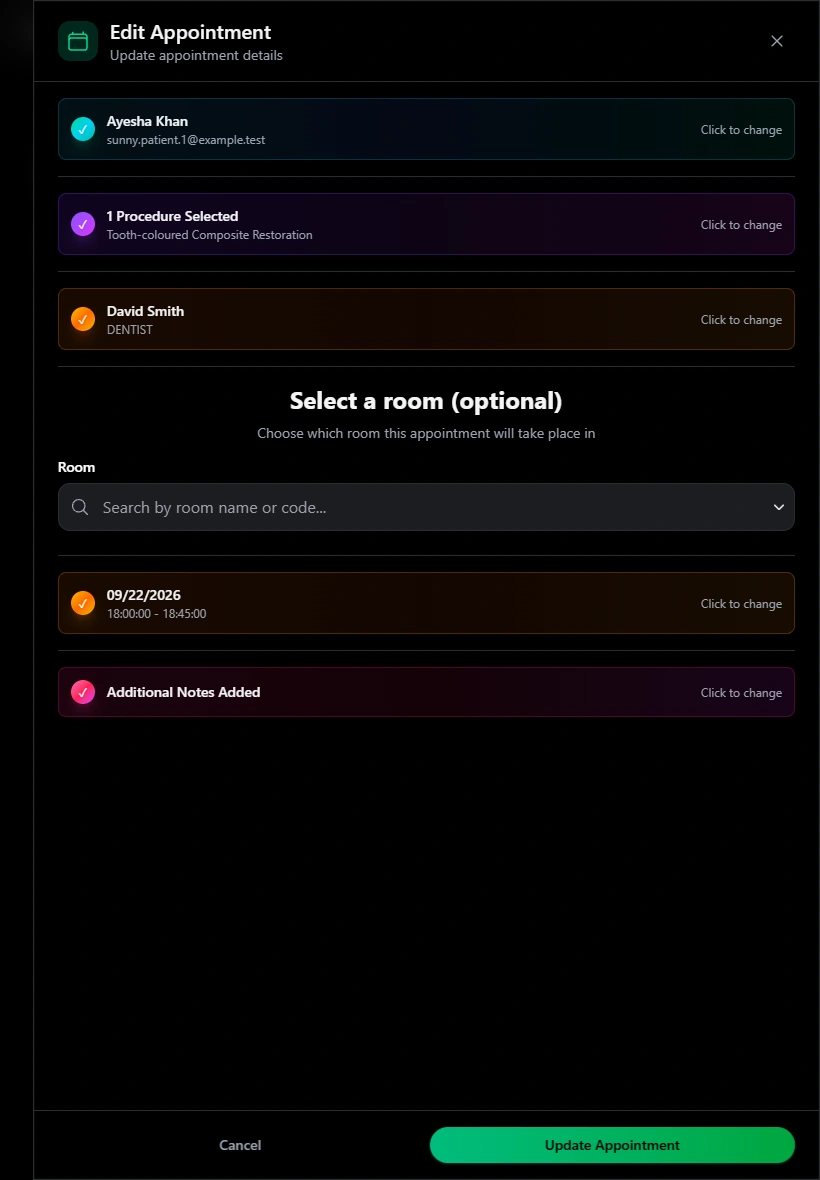
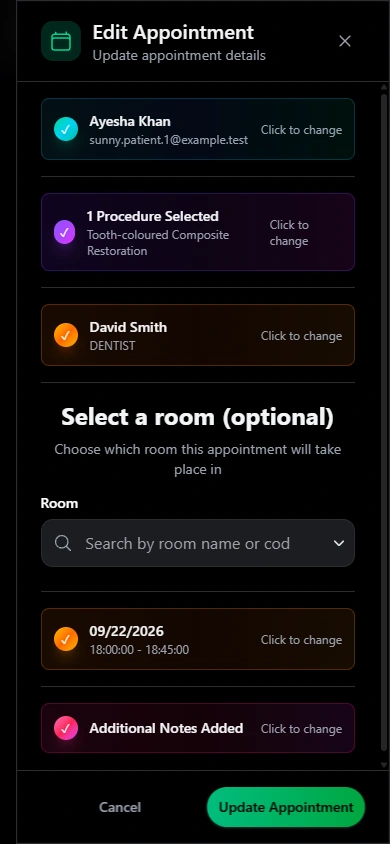
Review the patient, clinician, procedure and time together in the appointment drawer.
Open the status menu to see the available next actions for a scheduled visit.
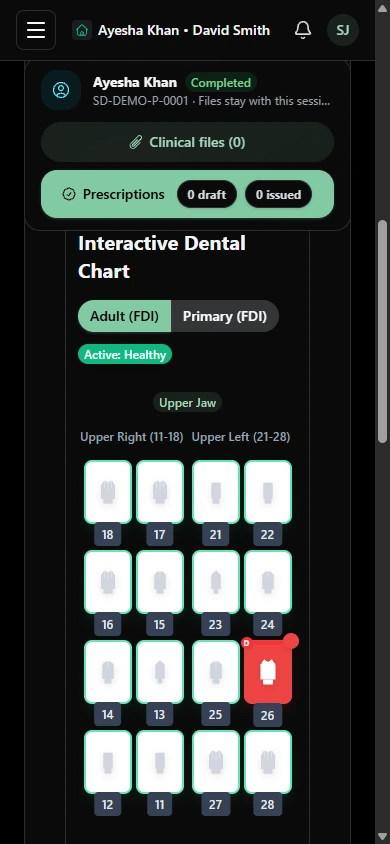
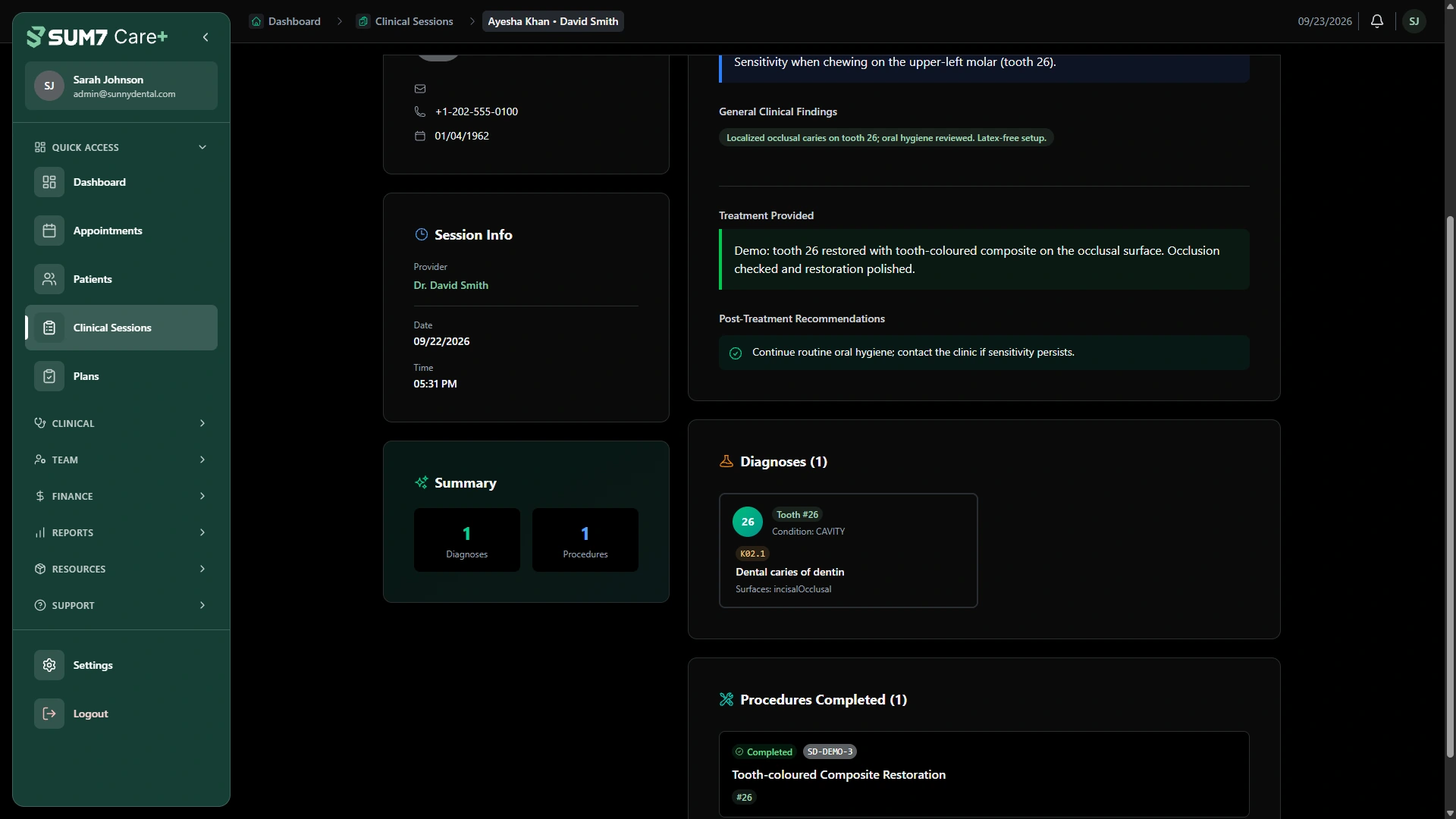
Move from patient context to the dental chart, then review the procedures recorded for the visit.
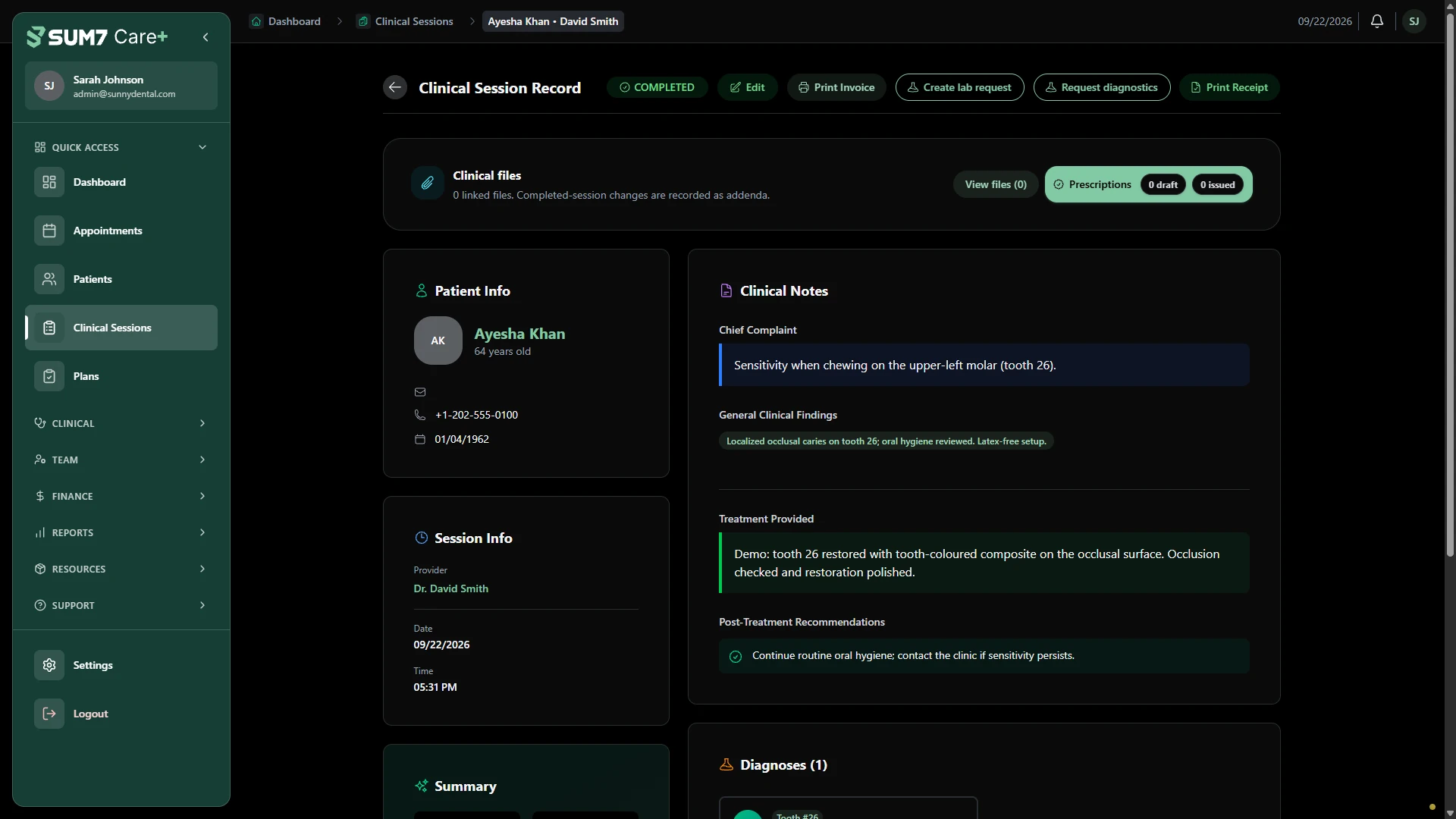
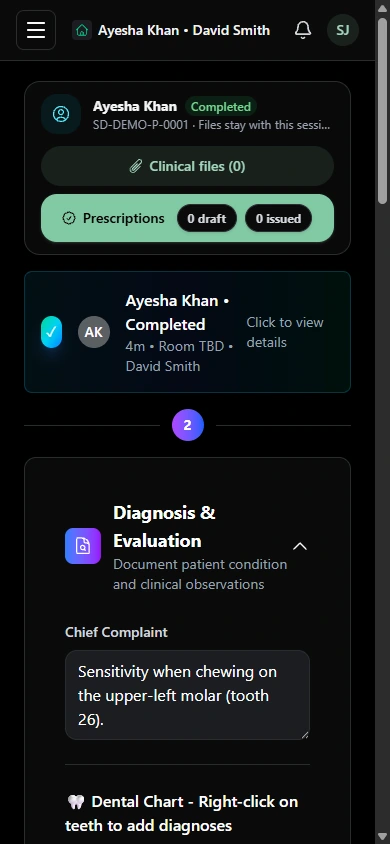
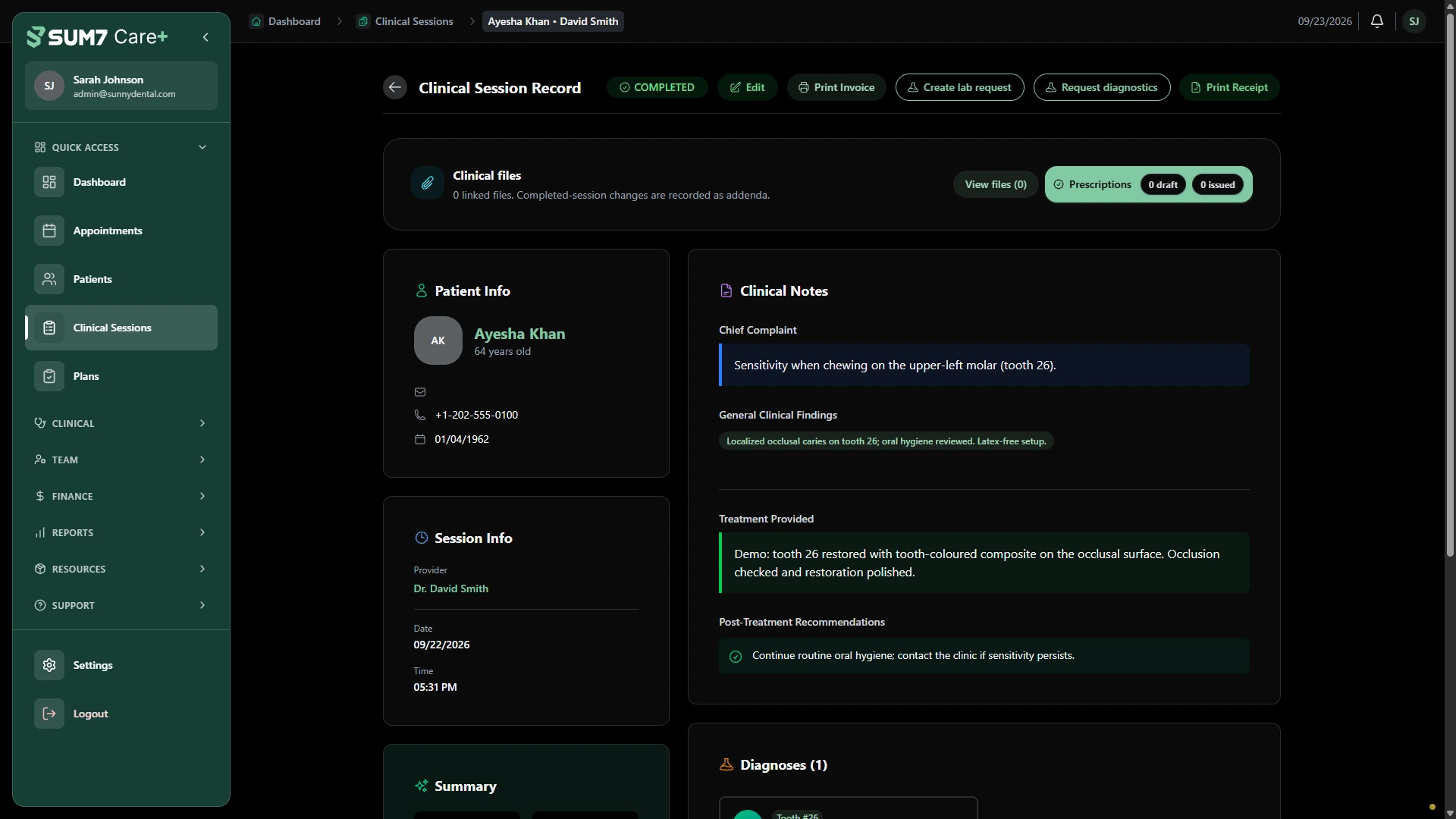
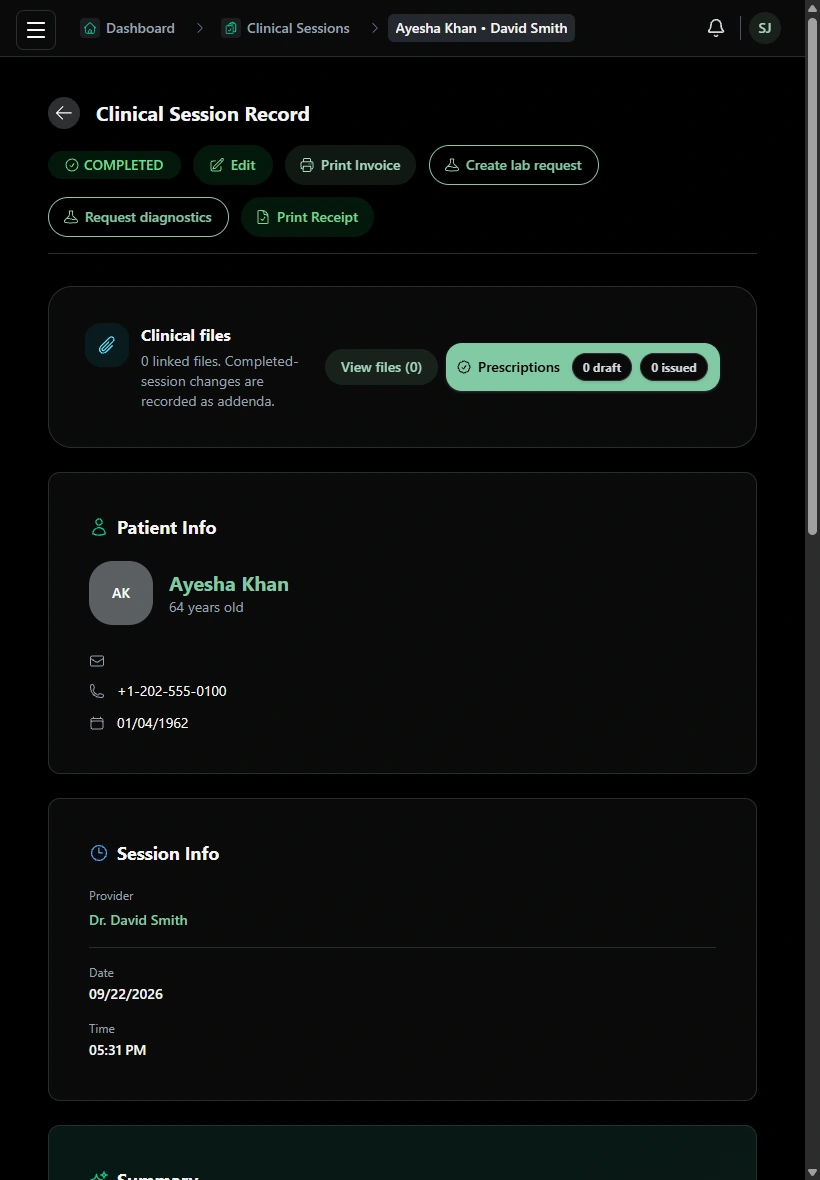
Review the clinical record and the visit details shown in the workspace.
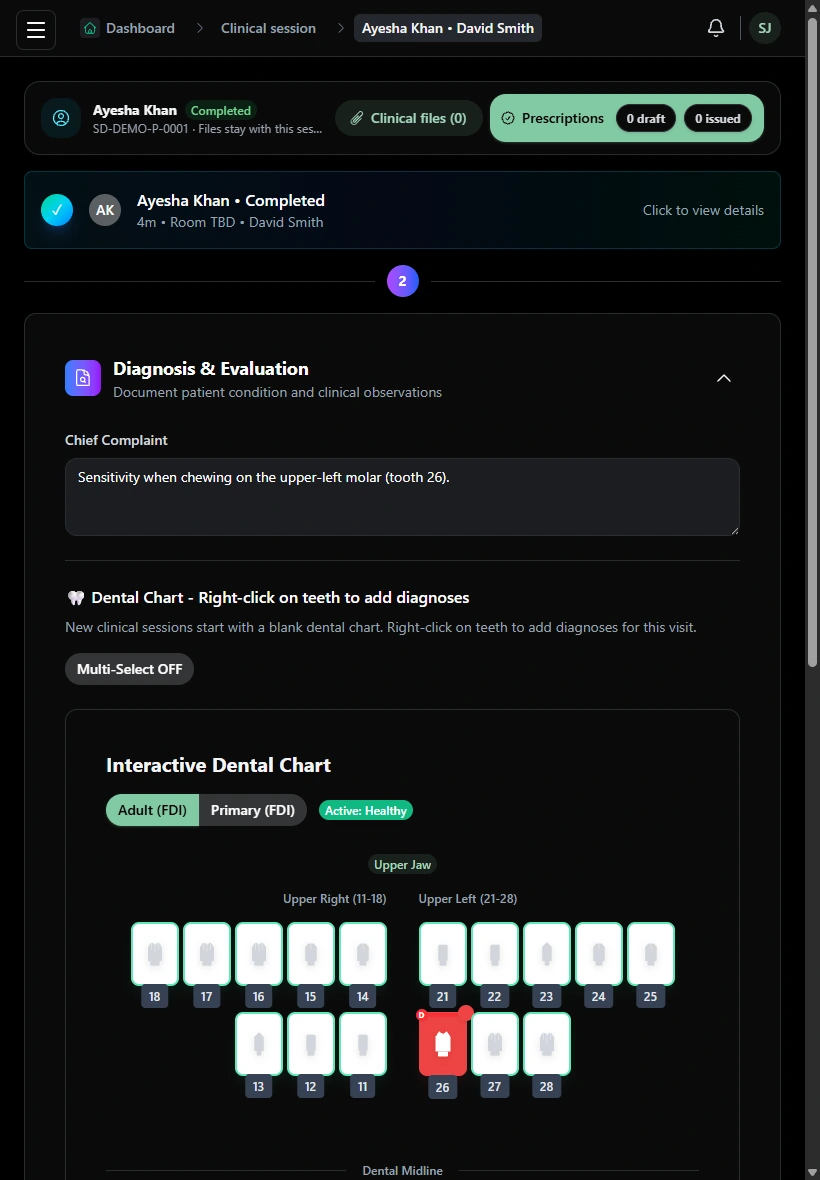
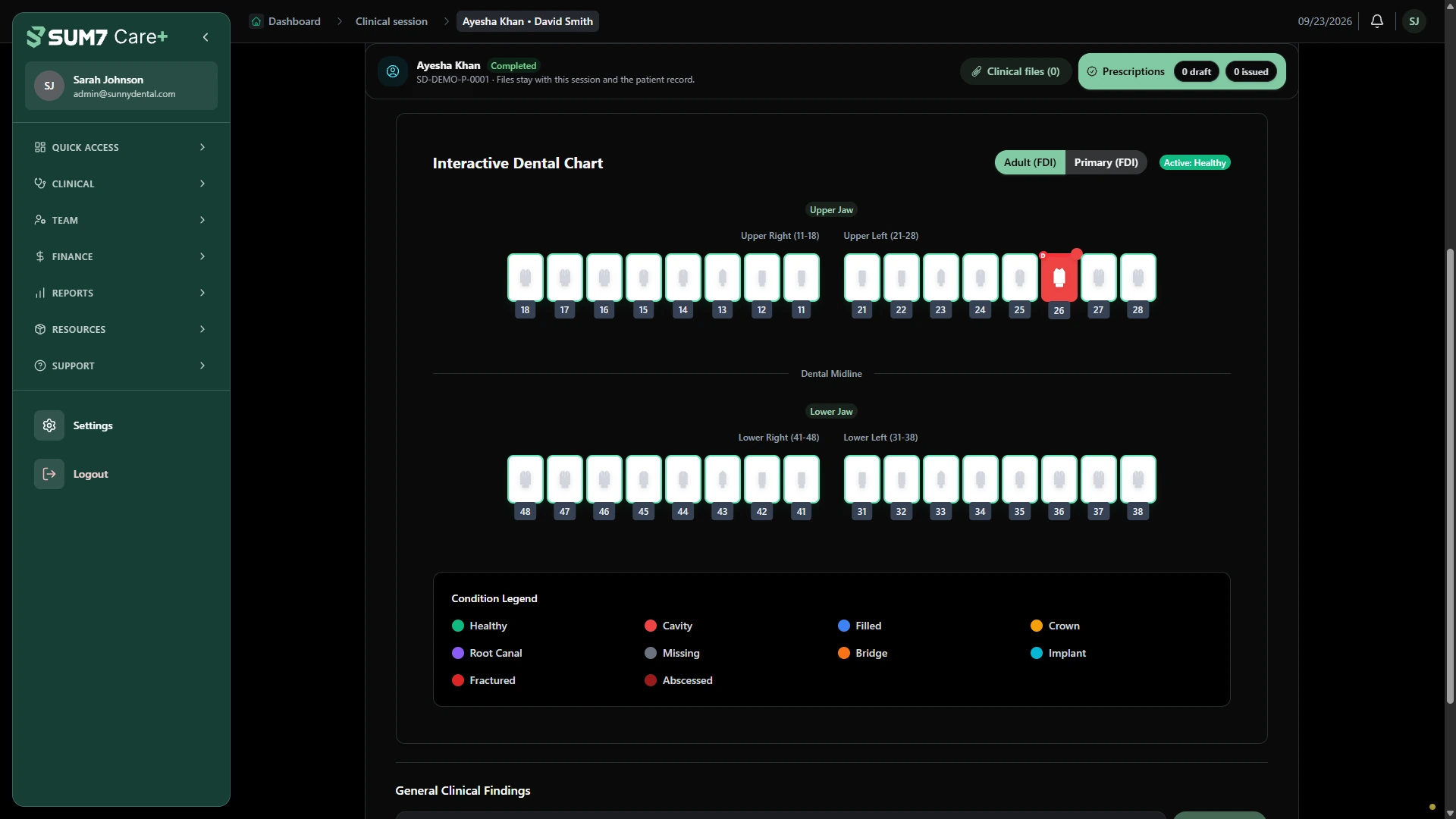
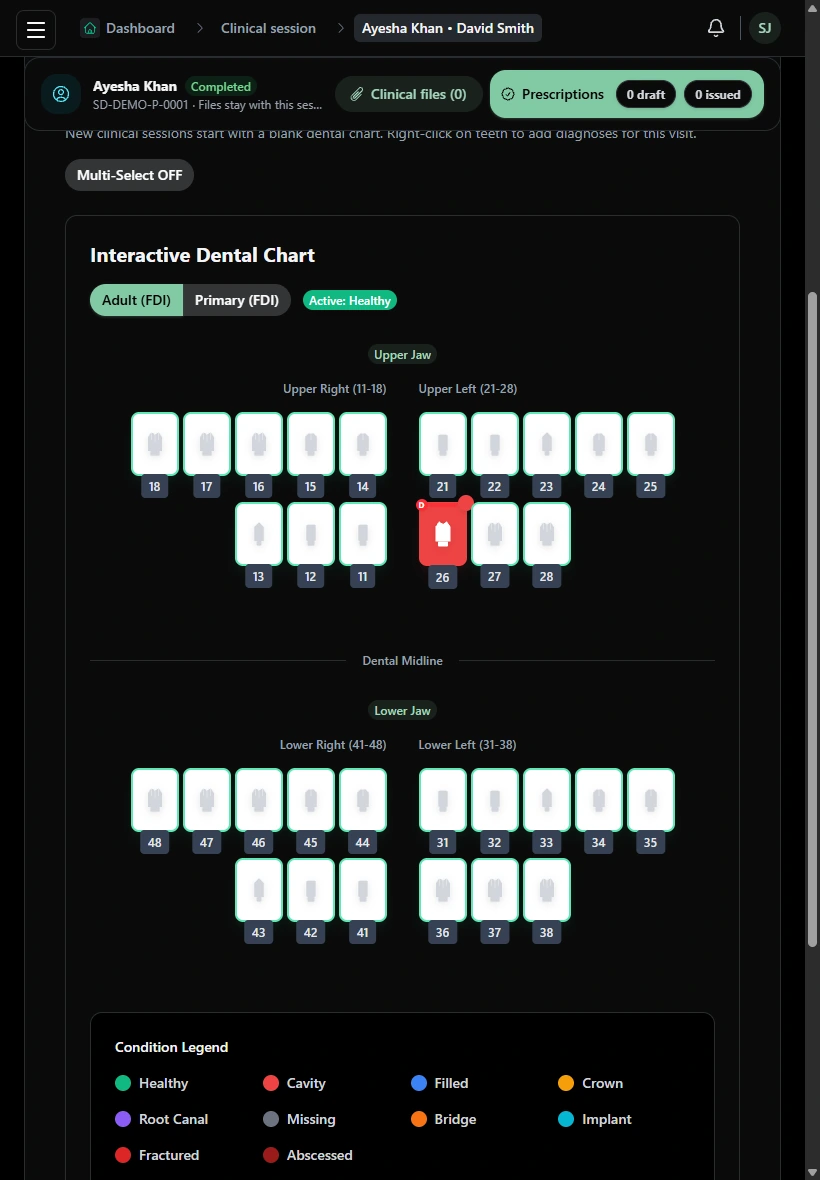
Review adult and primary FDI charts, tooth-level diagnoses and clinical observations within the session. The example highlights a recorded finding on tooth 26.
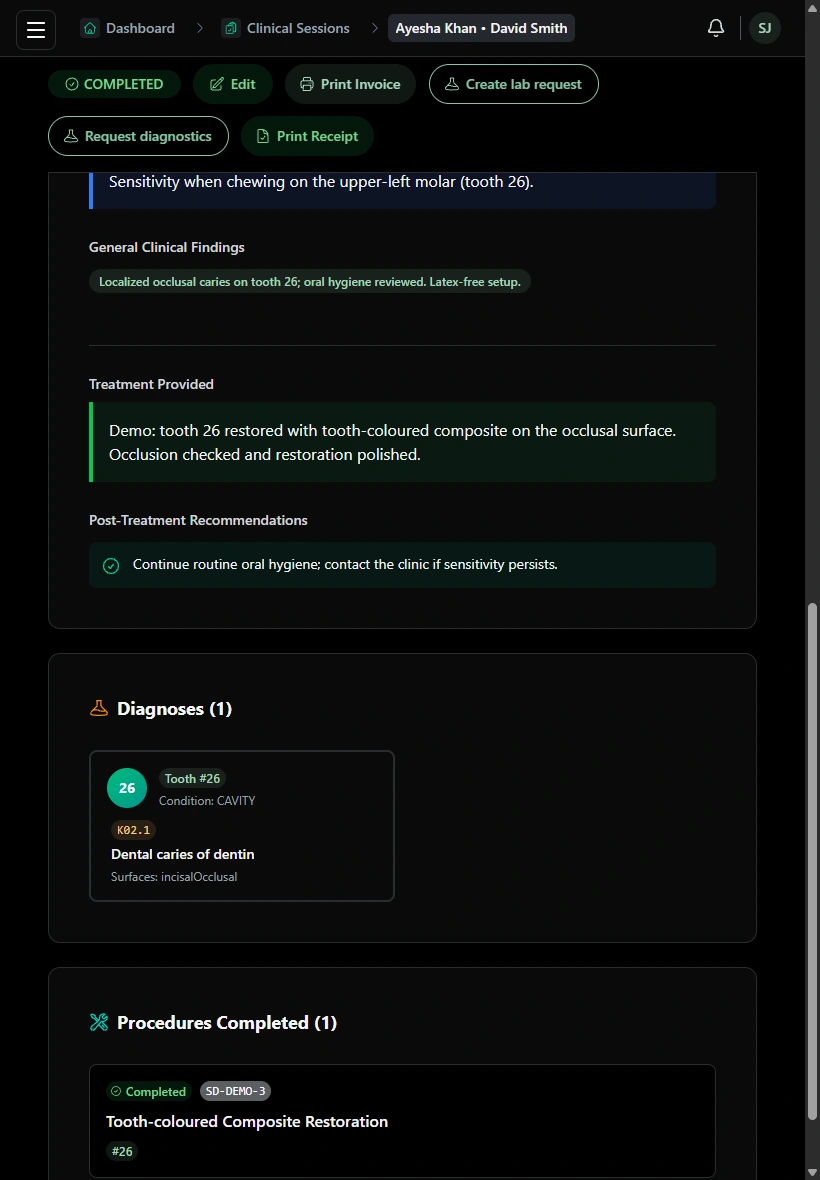
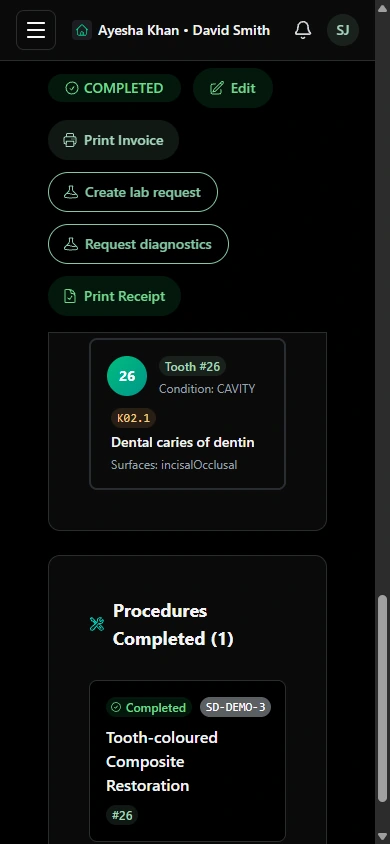
See the procedures documented for the example clinical session.
Open a proposed treatment plan and review its stages and planned procedures.
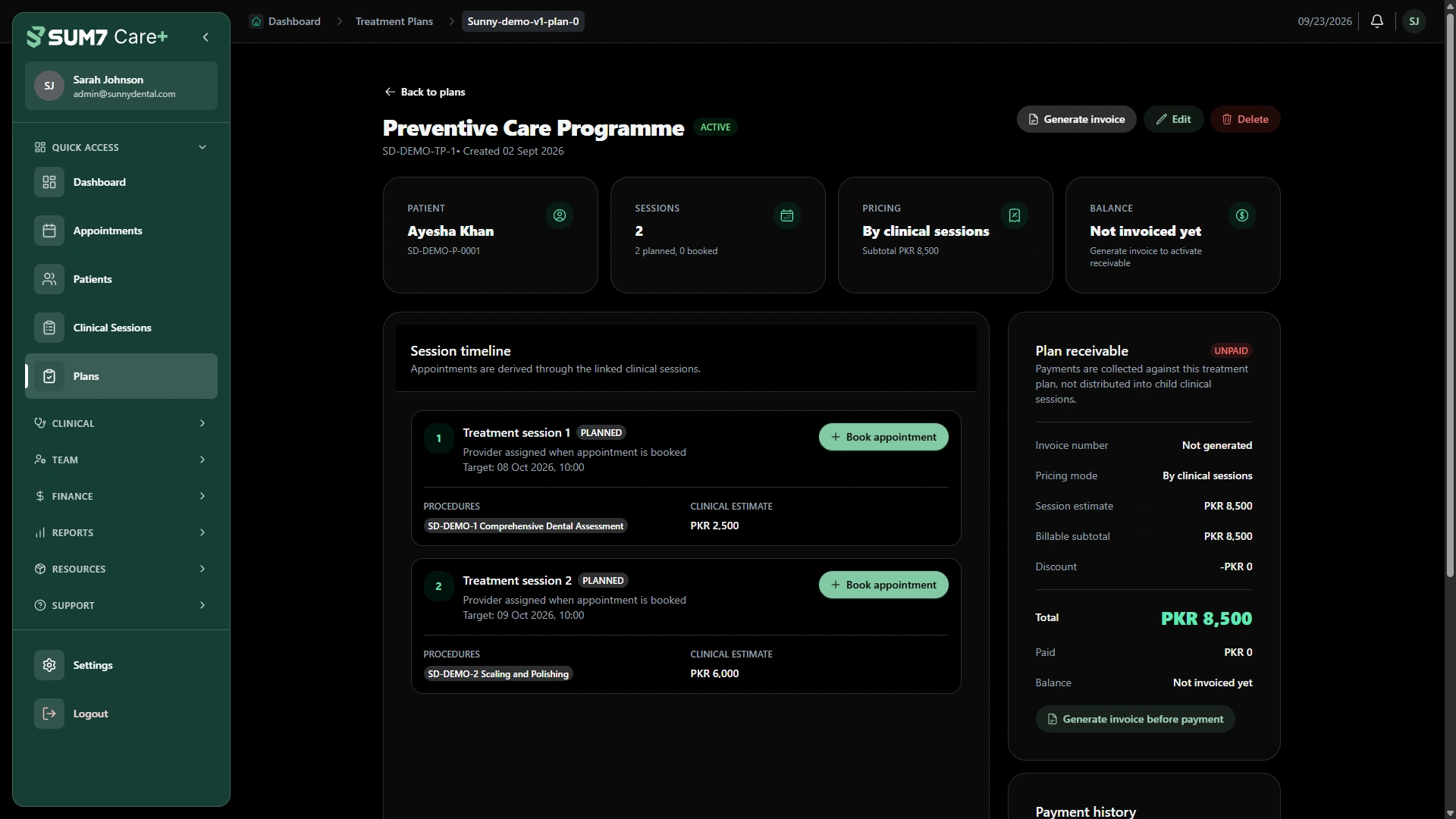
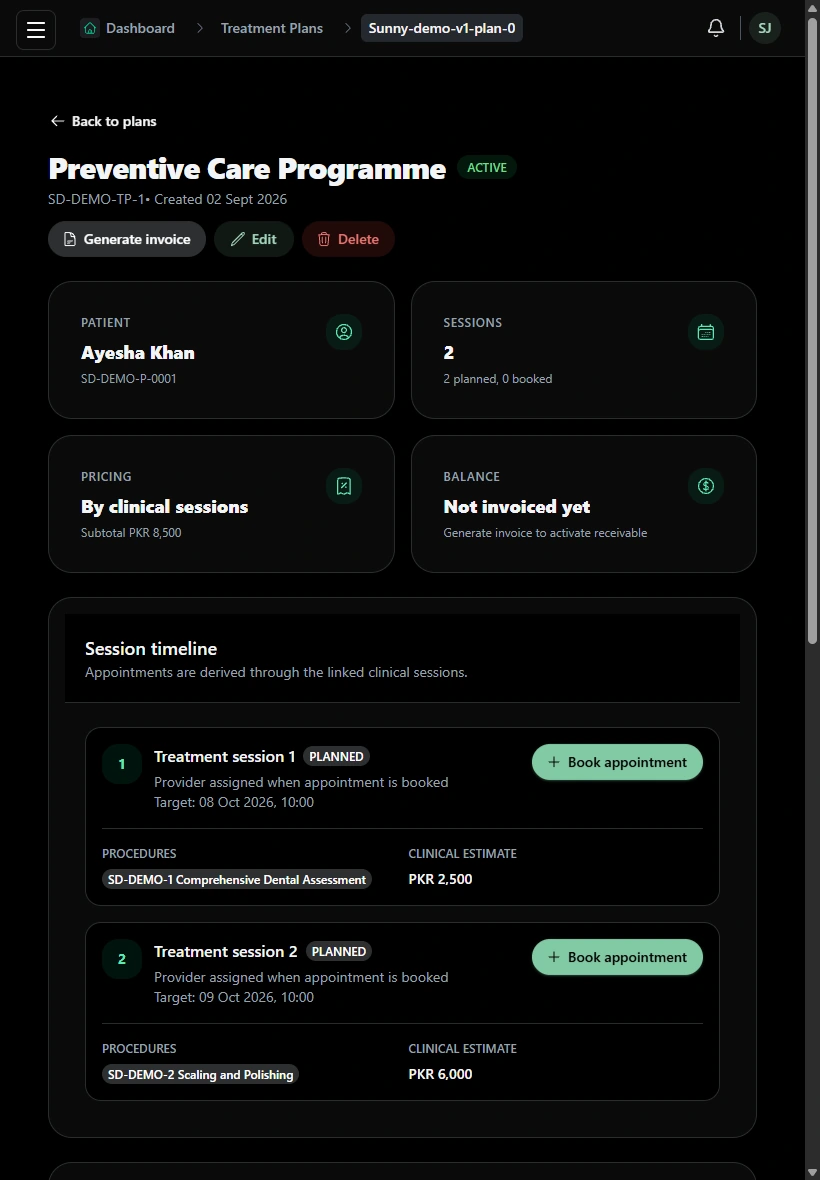
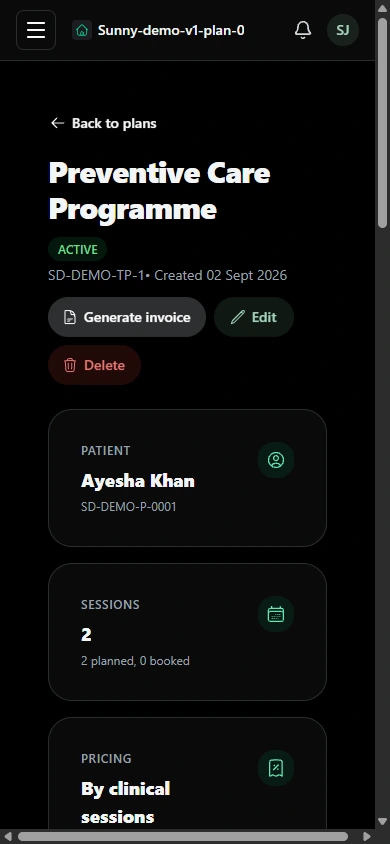
Review treatment plans separately from completed visits, so the team can find proposed procedures and follow the plan’s status.
Review the plan’s stages and procedures before discussing the next visit.
Review visit charges, the invoice and receipts, then check the patient’s account balance.
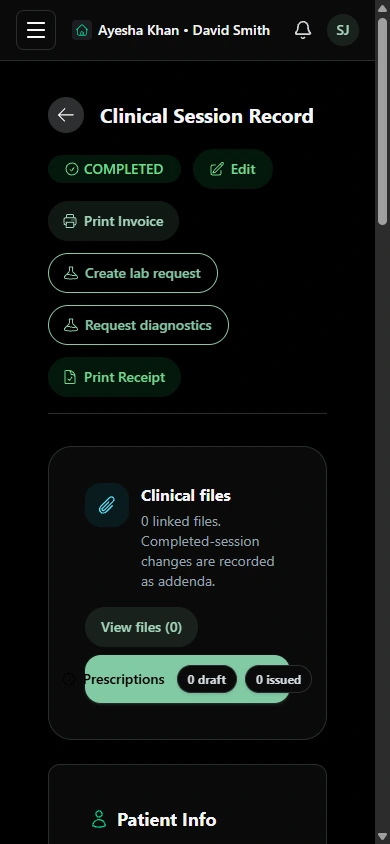
Review a completed clinical session and its recorded treatment. Invoice and receipt actions keep the financial documents accessible from the session workflow.
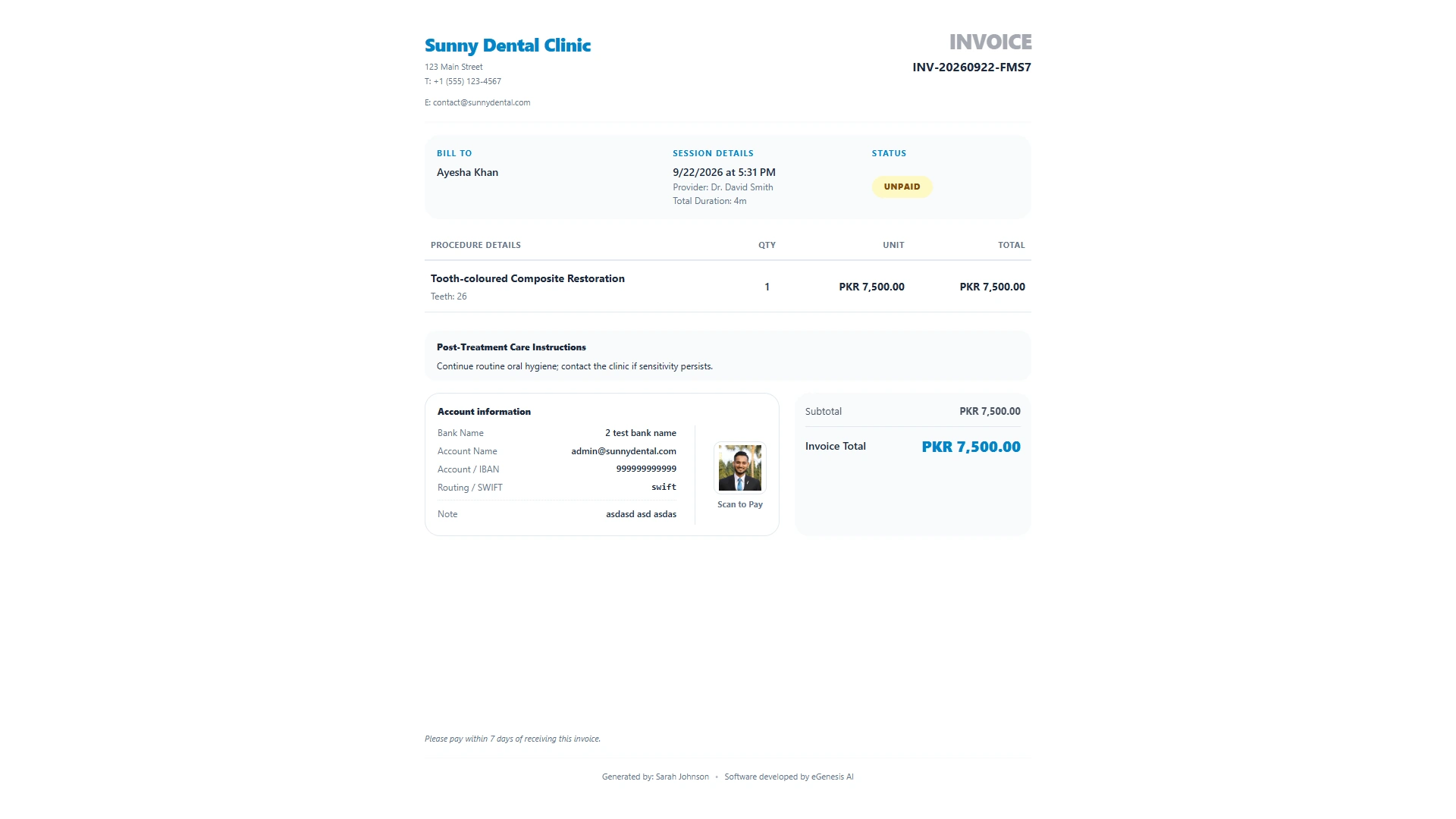
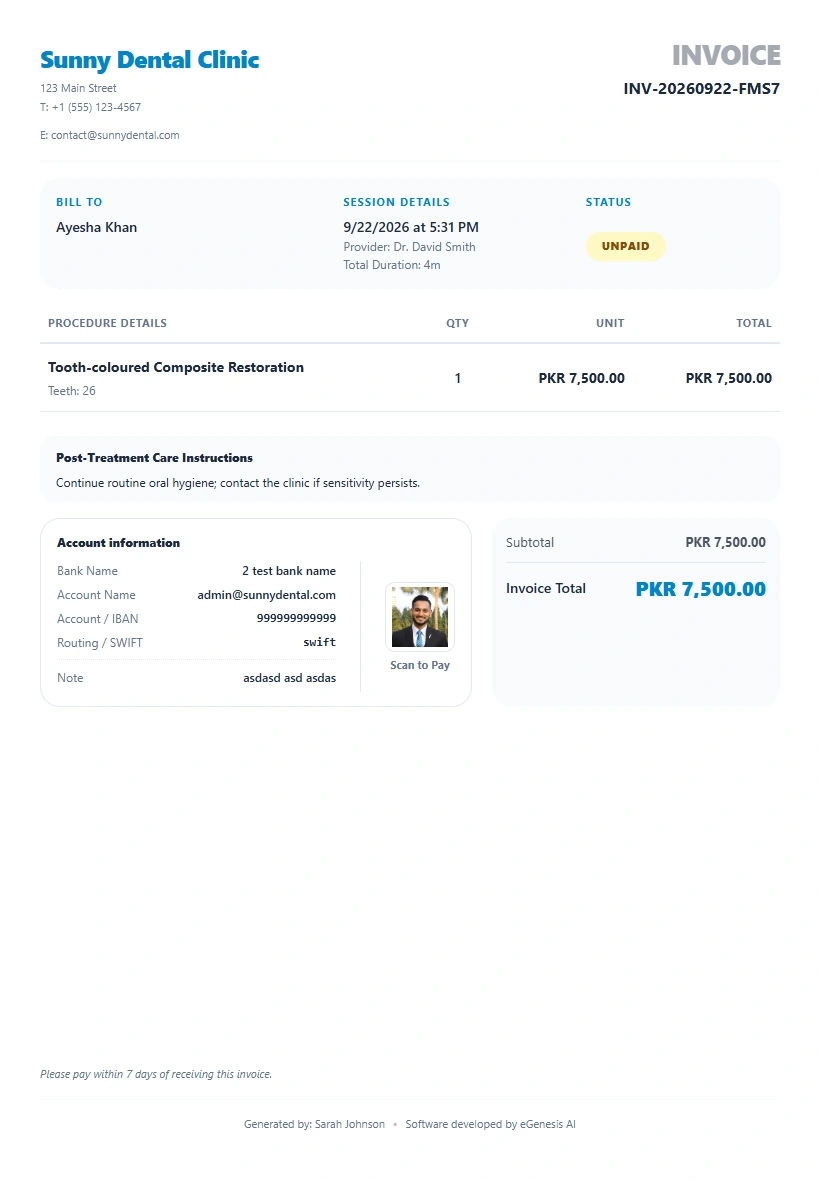
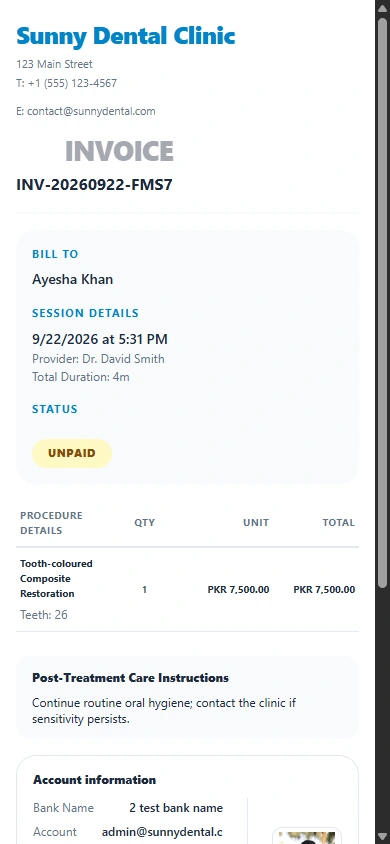
Check the recorded services and invoice total for the completed visit.
Review recorded payments and their transaction context.
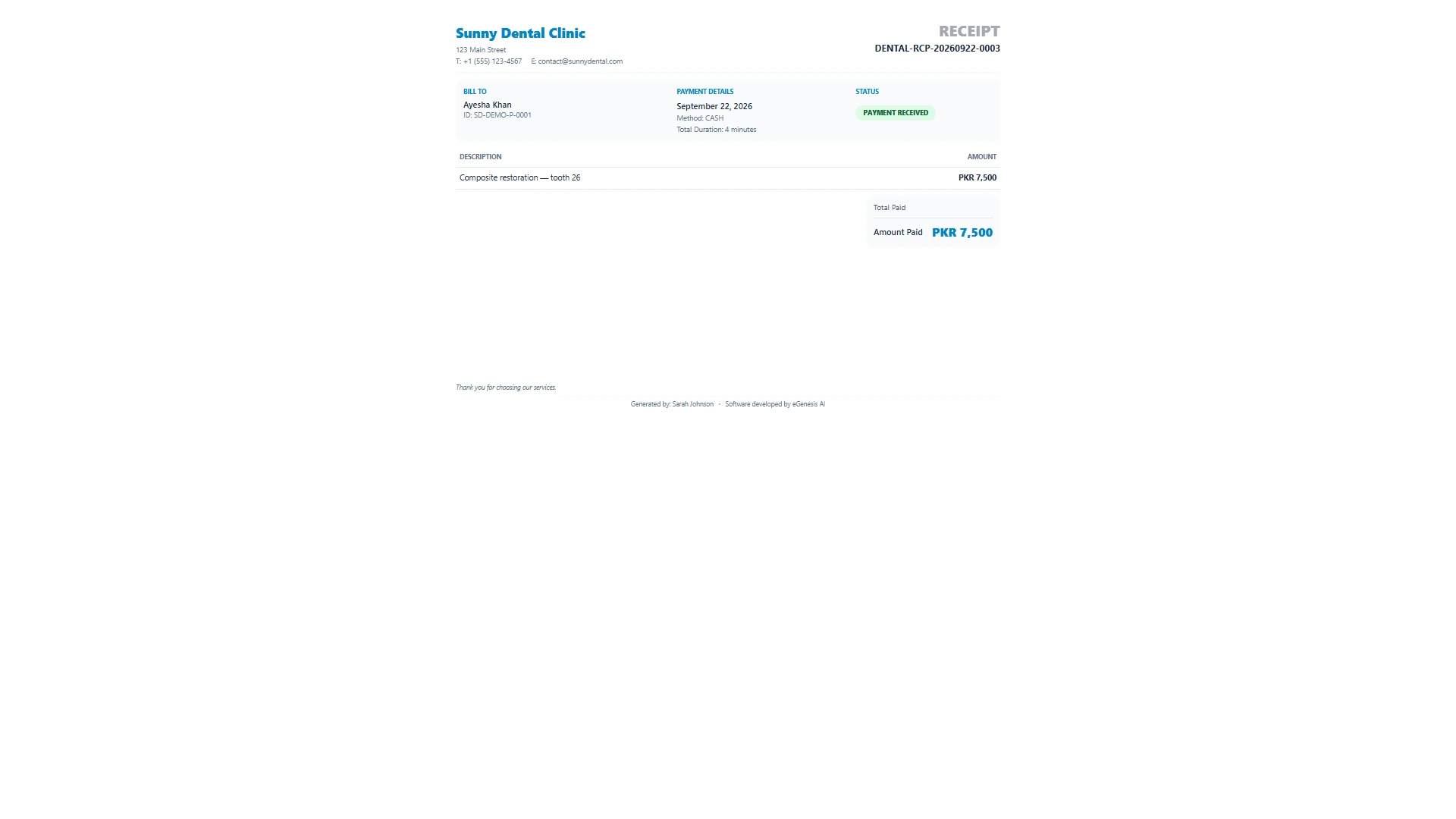
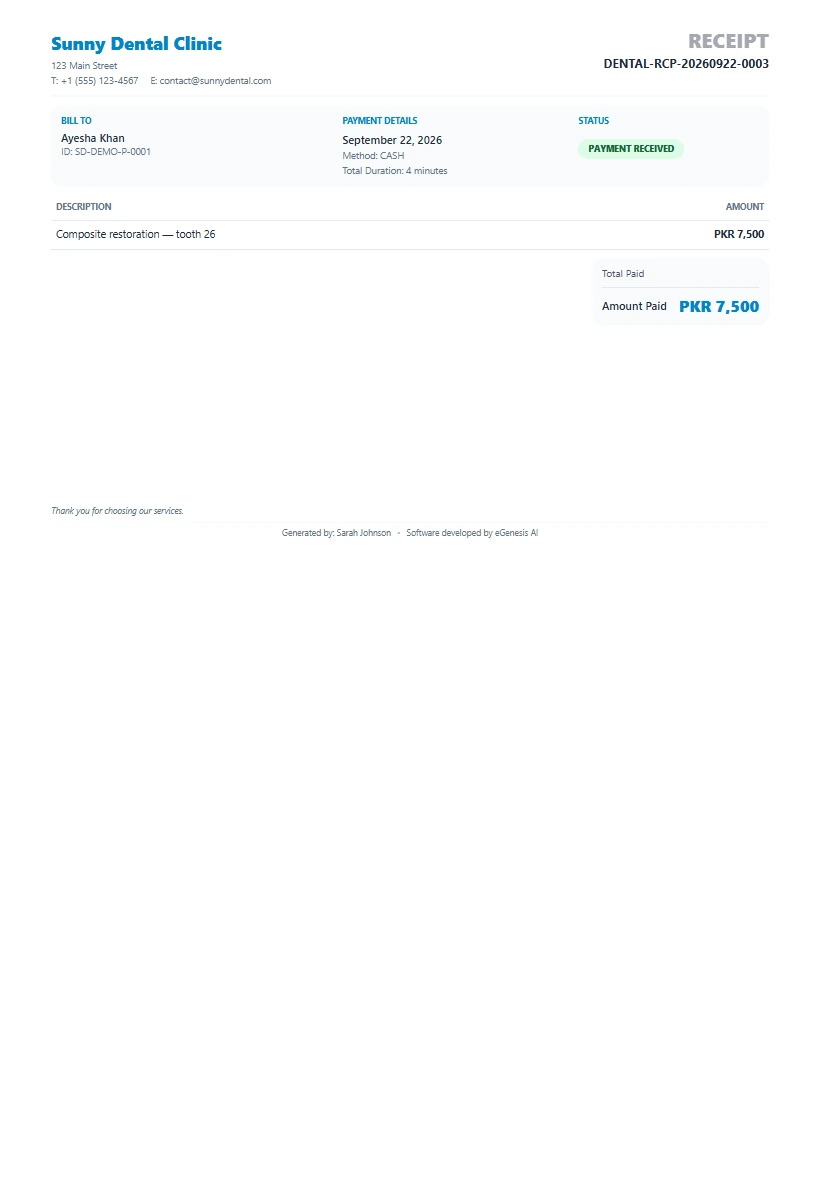
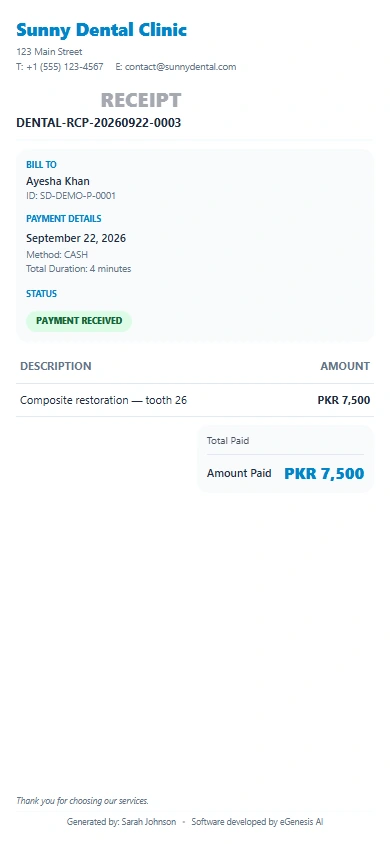
Open the receipt for a recorded payment and review its amount and reference.
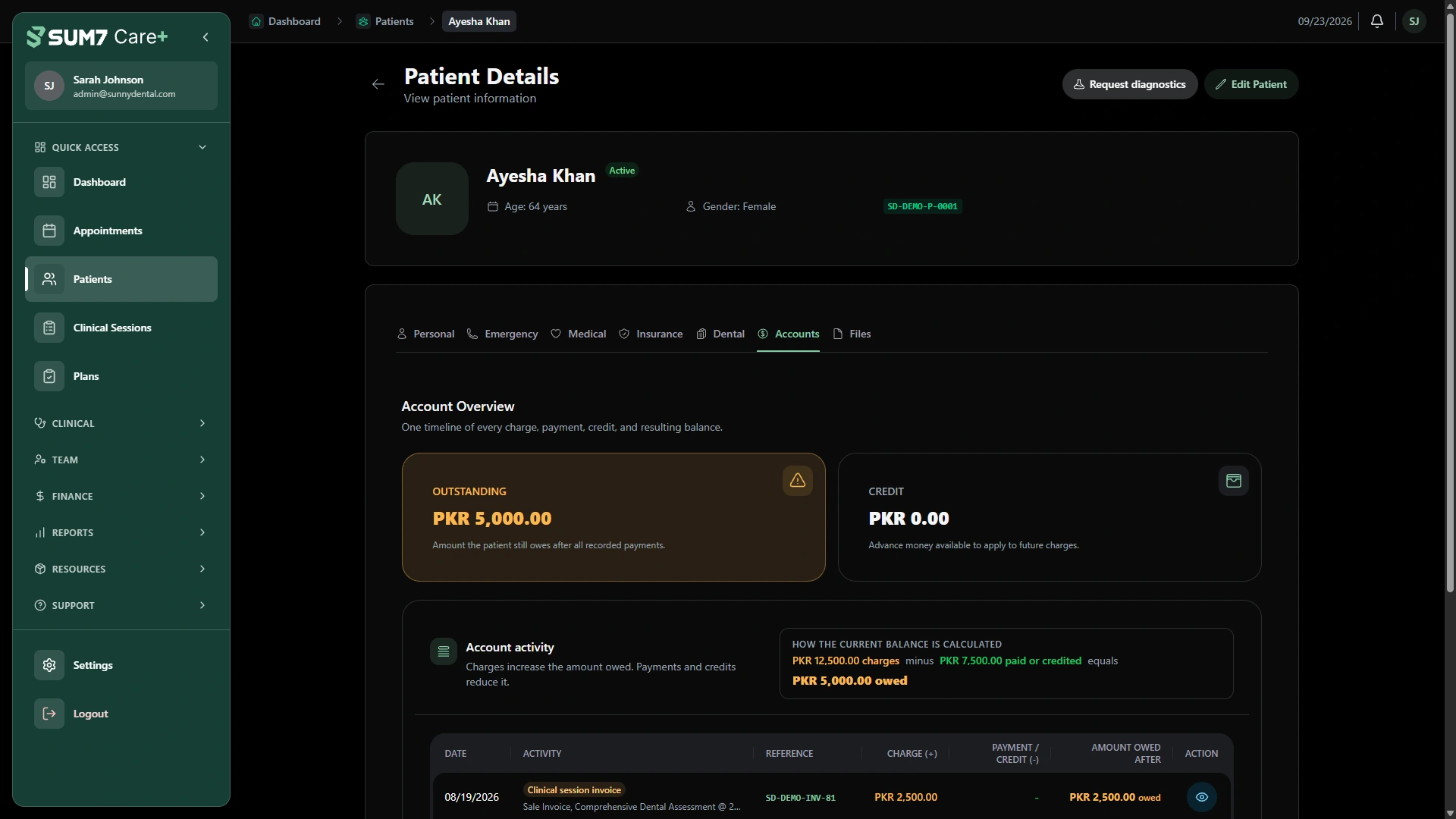
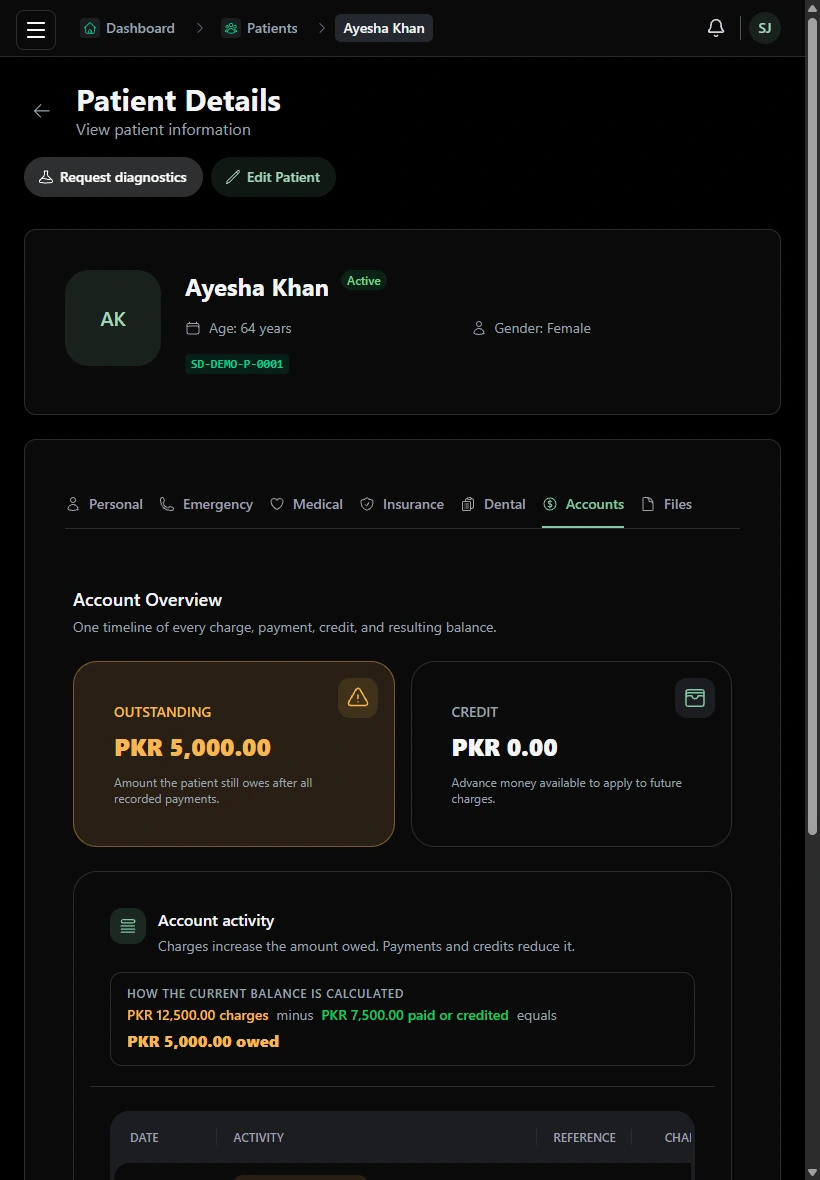
Return to the patient account to review charges, payments and the remaining balance.
Explore expenses, inventory, rooms and payroll. Availability depends on your subscription and selected add-ons.
Track practice expenses, suppliers, categories and recurring expense rules alongside your clinical operations.
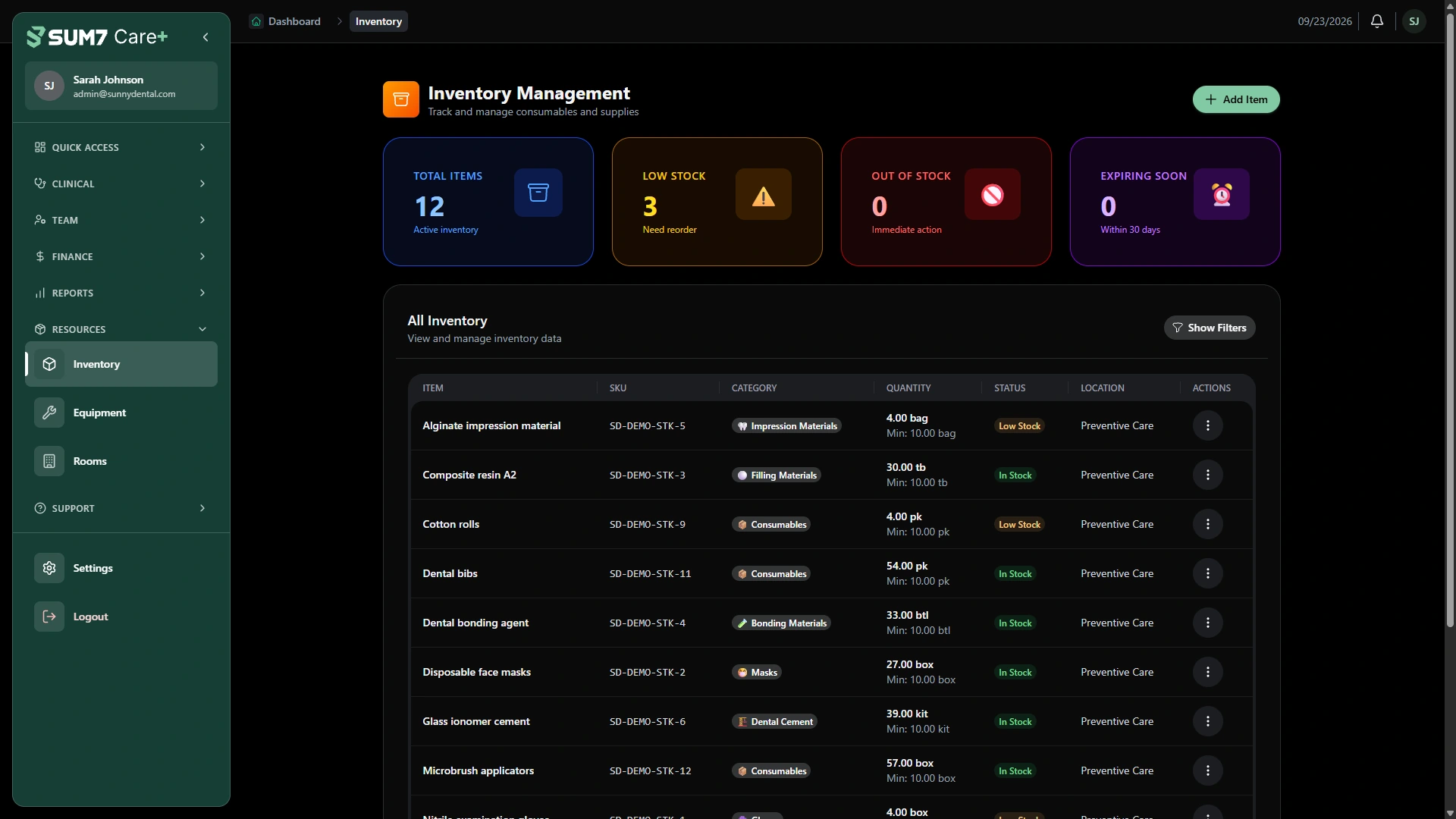
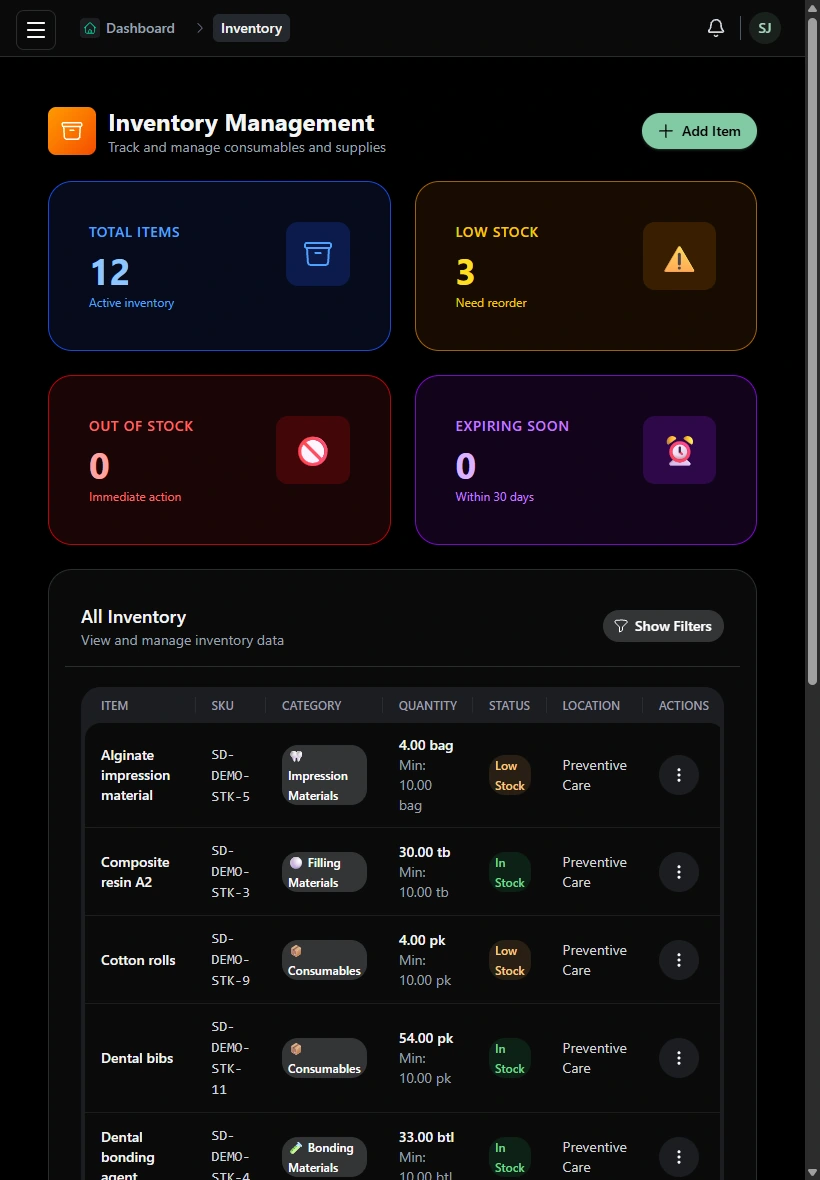
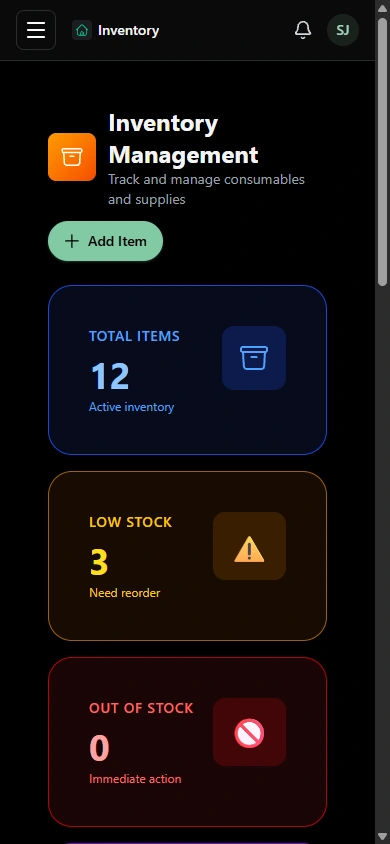
Review inventory items and stock transactions. Clinic inventory is an optional paid module, subject to your subscription and resource permissions.
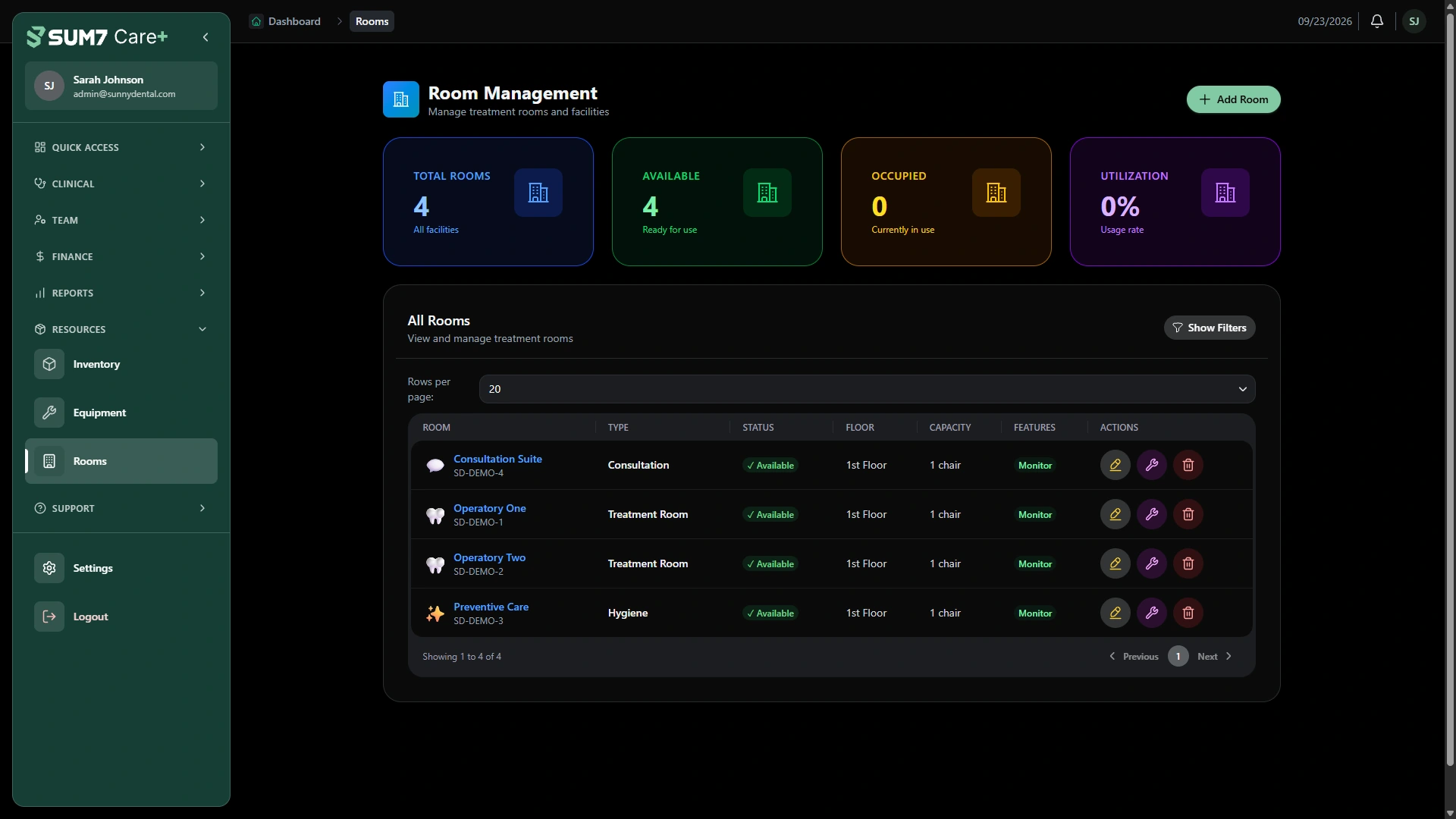
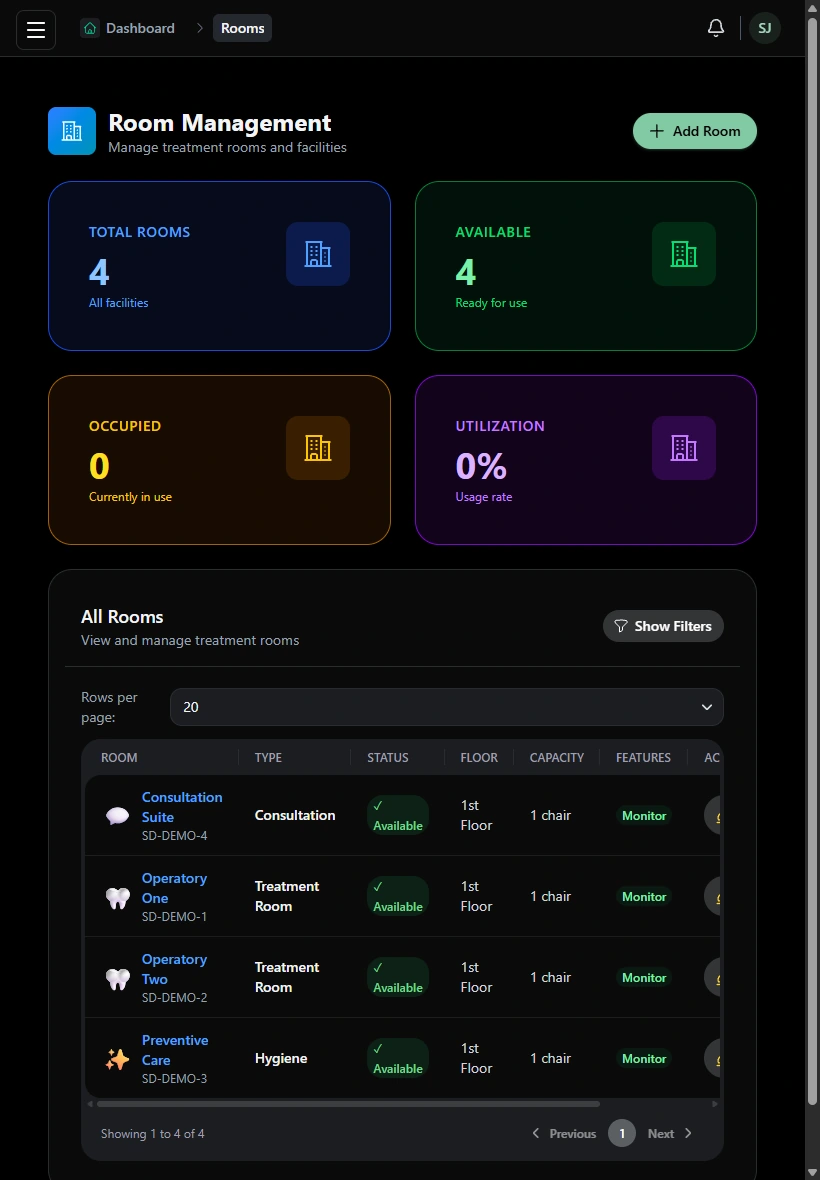
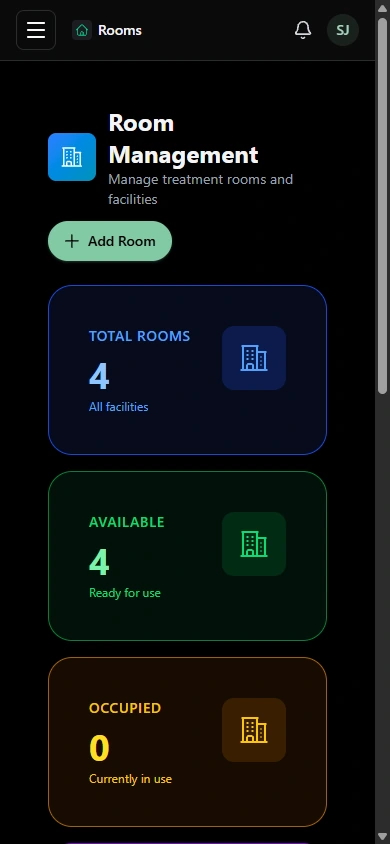
Organize treatment rooms and equipment as clinic resources. These optional paid modules help the team maintain resource records for the practice.
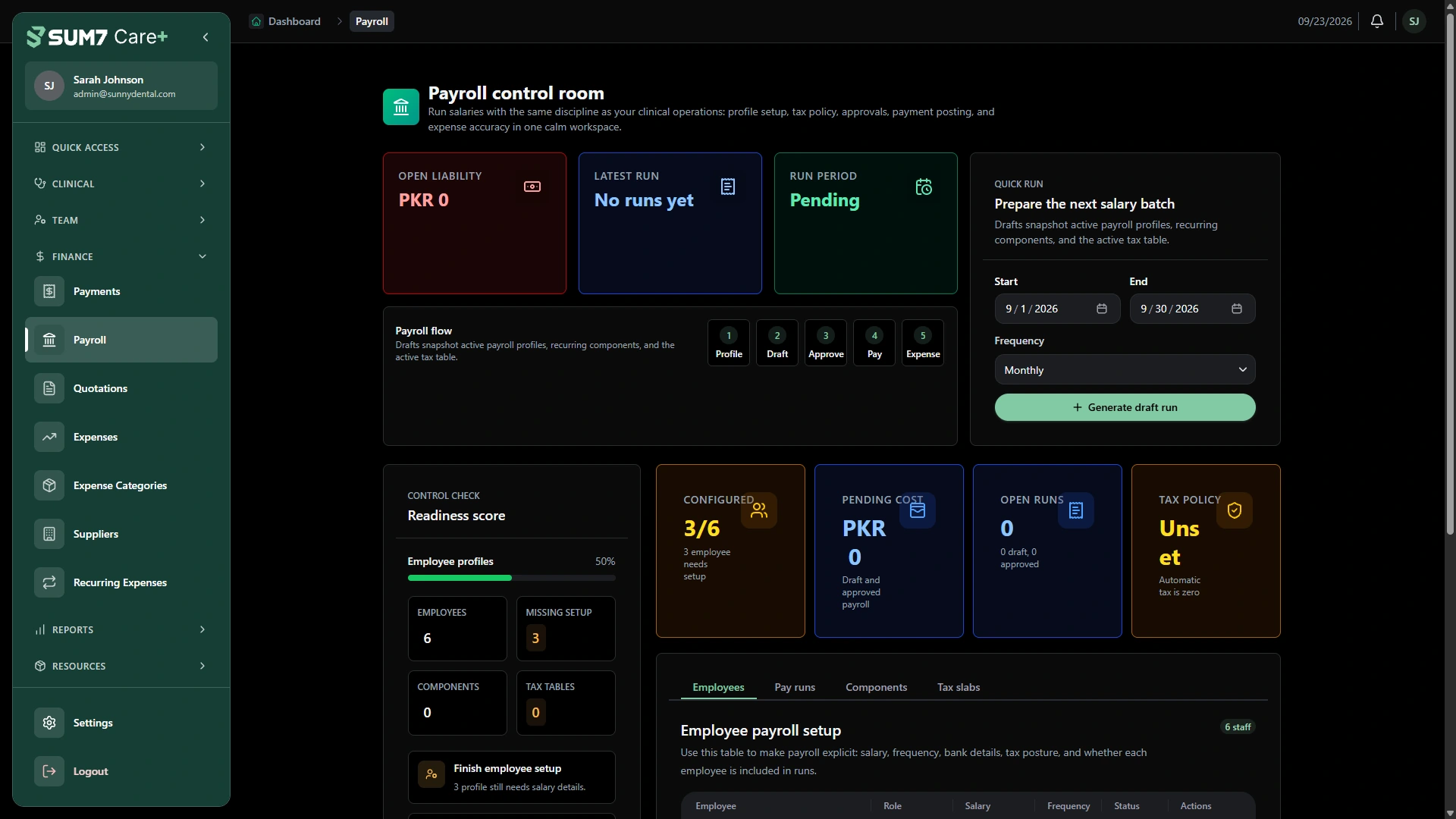
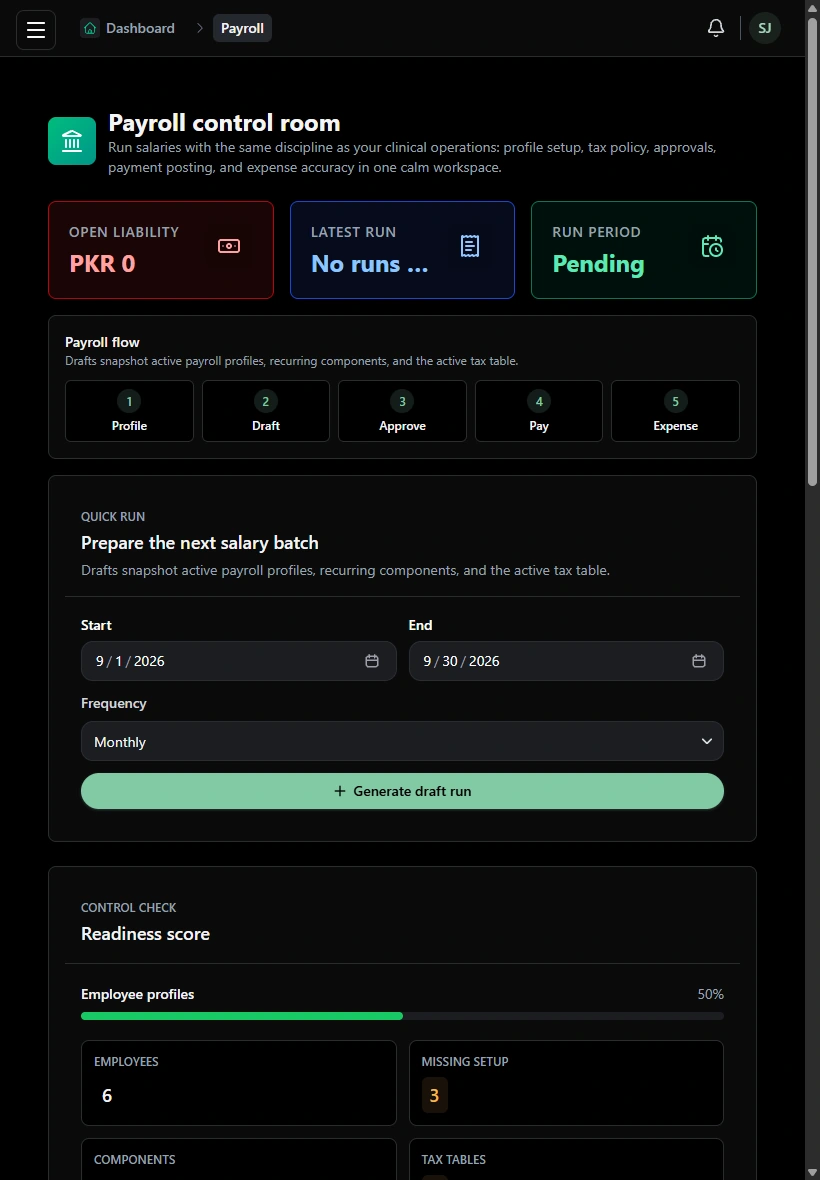
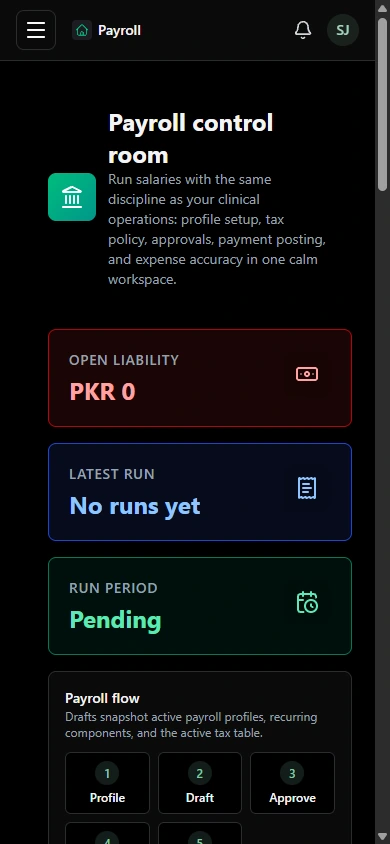
Manage employee payroll profiles, salary amounts, payroll runs and payslips. Payroll is a paid organization add-on; employee and manager views depend on access permissions.
Track practice expenses, suppliers, categories and recurring expense rules alongside your clinical operations.
Review inventory items and stock transactions. Clinic inventory is an optional paid module, subject to your subscription and resource permissions.
Organize treatment rooms and equipment as clinic resources. These optional paid modules help the team maintain resource records for the practice.
Manage employee payroll profiles, salary amounts, payroll runs and payslips. Payroll is a paid organization add-on; employee and manager views depend on access permissions.
Oversee practice setup, staff access and operational records according to assigned permissions.
Work with patient history, clinical sessions, diagnoses and treatment records within permitted clinical workflows.
Coordinate appointments and patient administration using the access granted to the front desk.
Support daily practice work with assigned roles and permissions. Access is configured for responsibilities; not every staff member sees every module.
A single location can be a small practice or a busy operation. Choose a subscription around the size of your team and the capacity you need.
Find your subscription fit1 doctor · 1 receptionist · 1 assistant
An example starting team for a dental or GP clinic.
Several clinicians and a shared front desk.
Room for a growing team within the same unit.
More clinicians, support staff and coordinated teams.
A larger subscription scope for a larger operation.
Your subscription scope considers active staff seats, patient capacity and storage. Small, medium and large are setup examples; your quote confirms the limits and price.
Add-ons cost extra. Availability depends on your unit type and agreed subscription.
Optional room, equipment and inventory management for clinics.
Payroll workflows, cross-unit reports and exports.
Connect clinic workflows with dental or diagnostic labs in your organization.
Start with one business. Combine different care units under one organization, or build a chain with multiple branches of the same type.
Explore dental and GP clinics, pharmacies, dental labs and diagnostic labs. Larger diagrams illustrate possible organization structures; availability of each department and connection must be confirmed for your setup.
Let’s find your setupA GP clinic, pharmacy and diagnostic lab, each with its own workspace.
Give patients a login of their own to follow appointments and view the records available to them.
Patient sign inPatients sign in to their own portal.
Check upcoming appointments and past visits.
View treatment information and files shared through the portal.
Find the right setup for your team, and know what to discuss before you get started.
Talk through your requirementsStart with the patient’s appointment and profile, then open the clinical session to review dental charting, diagnoses and procedures. Treatment plans describe proposed care; invoices, payments and receipts record the financial activity. In a demo, follow these steps for one example patient with your reception and clinical teams.
Explore the Care+ products that fit your team.